





Guide to the NoMachine User Interface
Table of Contents
Introduction
1. What is the NoMachine User Interface?
NoMachine Player
2. How to access NoMachine Player Settings
NoMachine Server
3. How to access NoMachine Server Settings
3.9. Desktop shared/Not shared
NoMachine Network
4. How to access NoMachine Network Settings
NoMachine Server admin
Introduction
This guide is an introduction to the NoMachine User Interfaces (UIs) in NoMachine software version 9 or higher. It is intended to illustrate the settings that can be configured in order to tune access from and to the remote computer on which it is installed.
1. What is the NoMachine User Interface?
The UI is essentially divided into four components:
Player. This is available when installing all of the NoMachine packages including Enterprise Client. The Player UI ("client side") controls the connecting client-side preferences and allows to connect to another remote machine with a NoMachine server installed.
Server. The Server is present when installing any of the NoMachine packages (free version and 'Server' products), but not the Enterprise Client. This is the local server UI ("server side") that manages the services of the host on which it is installed.
For guidance on installation and how to start a session to the remote computer, please consult the Tutorials & Installation & Guides available in the Support Section of the website: https://www.nomachine.com/all-documents.
Network. As for the Server section, it is present only when installing any of the NoMachine server packages, included NoMachine free edition. It is conceived to manage your NoMachine Network account and publish your computer on Network for easy access to its desktop through this new service.
Server admin. If the player is connecting in 'server admin' mode, it allows to administer the server remotely through an interface very similar to the local server UI, without the need to be physically on that server host or connected via NoMachine session. It's available also with the Enterprise Client package.
NoMachine Player
2. How to access NoMachine Player Settings
NoMachine Player provides the connection interface with which users initiate the connection to the remote computer that they want to access, and it also allows you to:
- configure the language to be used and appearance of the UI and connection menu
- set the paths to be used for program files, transferred files and Player settings in general
- organize Player log files and local privacy configuration.
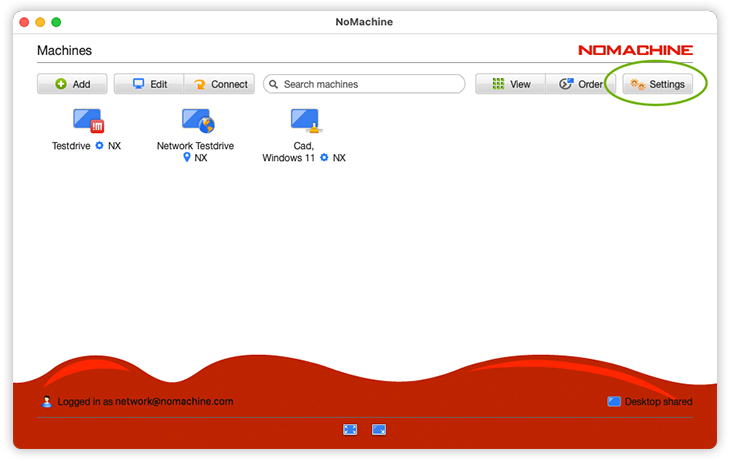
The Player UI is accessible either from the system's Programs/Applications menu, or via any connection shortcut that you have on your desktop. By opening up the UI, select 'Settings':
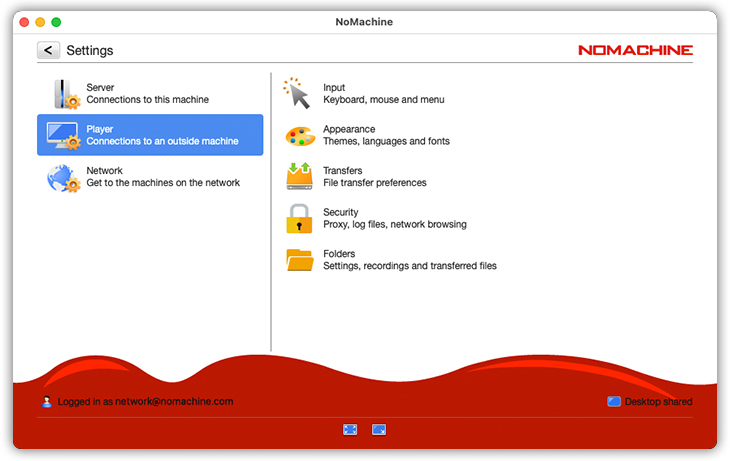
Clicking on 'Settings' open the panel to choose what to configure. Select 'Player' on the left to list all the possibilites:
2.1. Input
This panel lets you fine-tune keyboard input, mouse and pointer activity, as well as menu appearance to your own requirements:
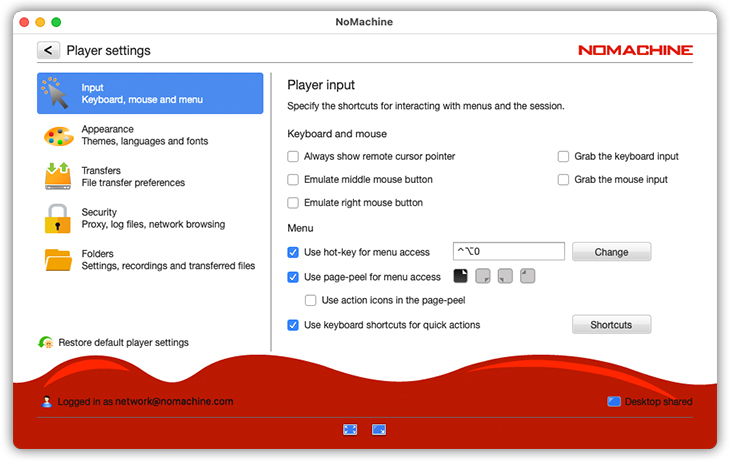
Always show remote cursor pointer
Check to 'Always show remote cursor pointer' of the remote computer when connecting via a shadowing session, i.e., if you are sharing the desktop session of another user and both of you are connected, the connecting user will see the owner's cursor as well as their own. Disabled by default.
Emulate middle mouse button
Users can enable 'Emulate middle mouse button' to use left + right click in place of middle-button on mouse during the remote session.
Emulate right mouse button
Users connecting from Mac can enable 'Emulate right mouse button' to use Ctrl + mouse click in place of right-button on mouse during the remote session.
Grab the keyboard input
Enable sending of local key presses to the remote window, such as Alt-Tab and PrintScreen. Sending Alt-Tab key events will switch between different remote windows rather than switching among the local windows open locally.
Grab the mouse input
Enable to keep the pointer/mouse always within the NoMachine remote window.
Use hot-key for menu access
Check to use hot-key menu access and personalize the keys to be used by setting shortcut preferences in 'Shortcuts'. Set to Ctrl-Atl-0 (zero) by default.
Use page peel for menu access
Disable or enable 'Page-peel' and choose a corner that won't interfere with your browser or file commands (top right, bottom right, bottom left, or top left). Hovering over the corner to display a page curl effect will quickly pull up the Menu when clicked.
Use action icons in the page-peel
Show action icons 'Minimize', 'Fit-to-window' and 'Fullscreen' in the page-peel space.
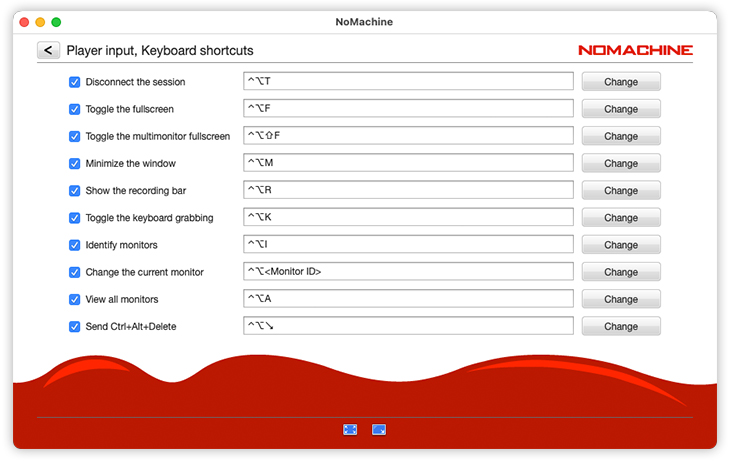
Use keyboard shortcuts for quick actions
Set the shortcuts to be used within the NoMachine session that will allow you to terminate the session, toggle the fullscreen, minimize, show the recording bar, and others
2.2. Appearance
In this panel you can set how your client UI will appear:
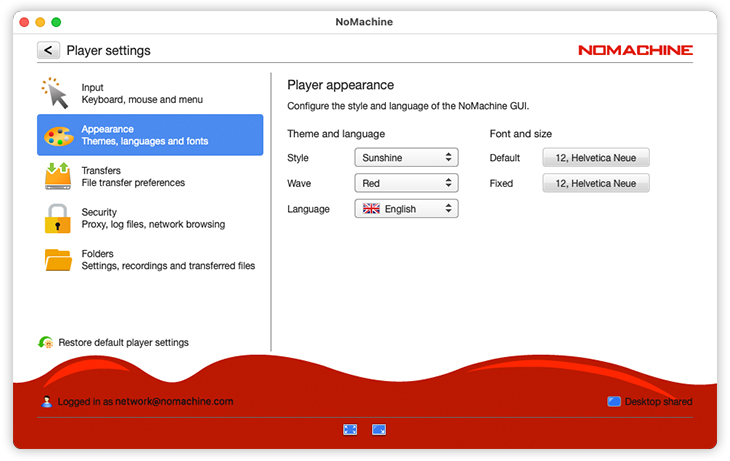
Style
For a native look and feel, select Sunshine. The NoMachine UI will then integrate as a native app on your operating system. For a black UI, select 'Moonlight'.
Wave
Choose among displaying the red wave or the light gray one or the dark gray one.
Language
Select the preferred language to be used in the UI and dialogs. Note: some dialogs such as eventual error messages may be shown in the language of the Operating System.
Font
Select the preferred font. 'Fixed' refers to the font used by the Player should it have to show log excerpts. 'Default' refers to the character style adopted within the UI.
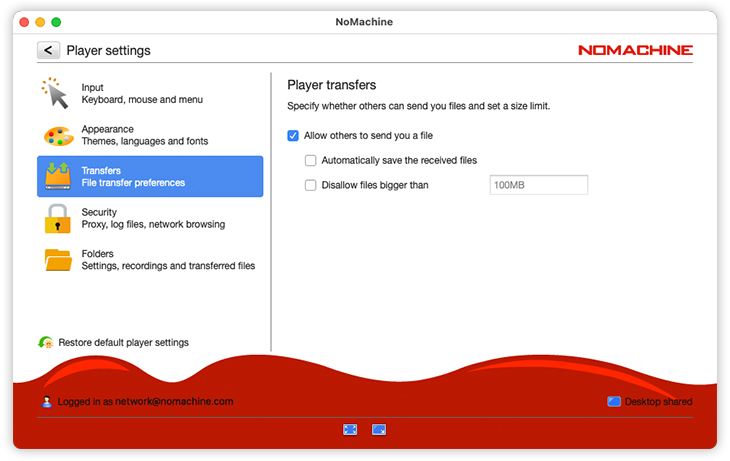
2.3. Transfers
This is where you set whether other users are allowed to send you files from a remote computer, plus any limits on size of the files that you can receive:
2.4. Security
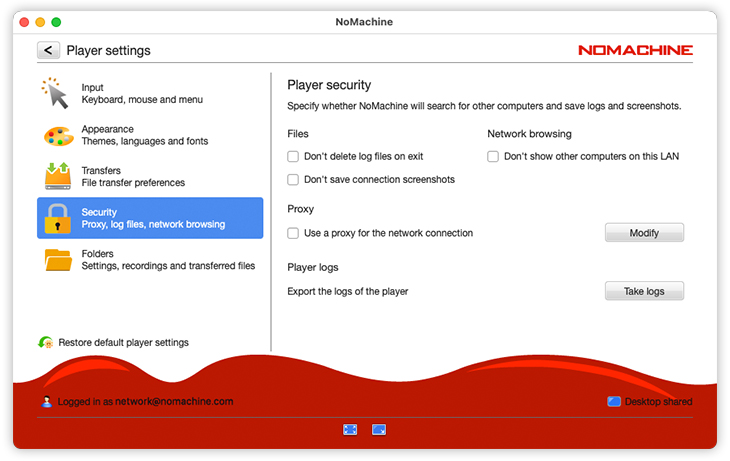
Configure whether NoMachine should store log files, screenshots and whether other users (on LAN) should be shown in the Machines panel. By default, network browsing box is not checked.
Don't delete log files on exit - Select this to keep log files when closing the session.
Don't save connection screenshots - When disconnecting, NoMachine will save an image of your remote desktop and show it in the connection dialog when you next connect. Check the box to not show a screenshot of the session.
Don't show other computers on the local network - Select this option to not see other computers connected on the LAN which have NoMachine installed.
Use a proxy for the network connection - Disabled by default, check this box if your internet connection passes through an HTTP or SOCKS proxy.
Export the logs of the player - Click on 'Take logs' to retrieve client logs, a pop-up will ask you where to save the log archive (in .zip format). This will compress the .nx directory, by default placed in the home of the user who opened the client.
2.5. Folders
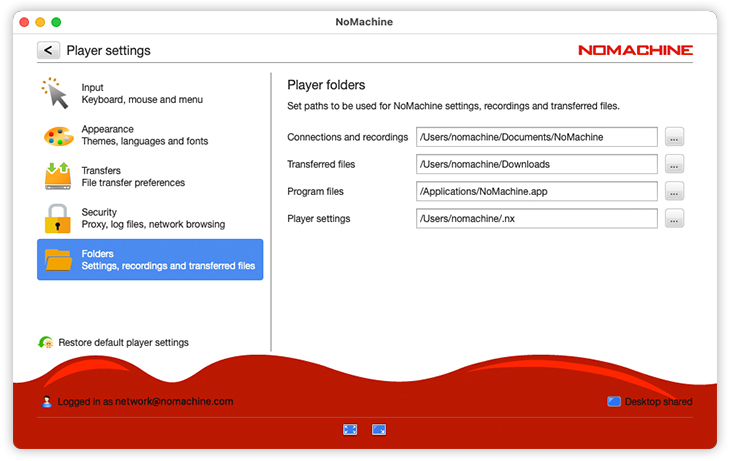
Configure the paths for NoMachine program files and connection settings. Indicate where you would like NoMachine to store transferred files and recordings.
NoMachine Server
3. How to access the NoMachine Server Settings
Provided you have installed any of the NoMachine server products, the Server settings are accessible from the Machines panel. The Server settings handle what happens when users connect to the computer on which it is installed. Open NoMachine from the system's Programs/Applications menu, via any connection shortcut that you have on your desktop or via the NoMachine !M in the system tray by clicking on Show main window.
Upon opening up the UI, make sure you are on the Machines panel and click 'Settings':
Then select 'Server':
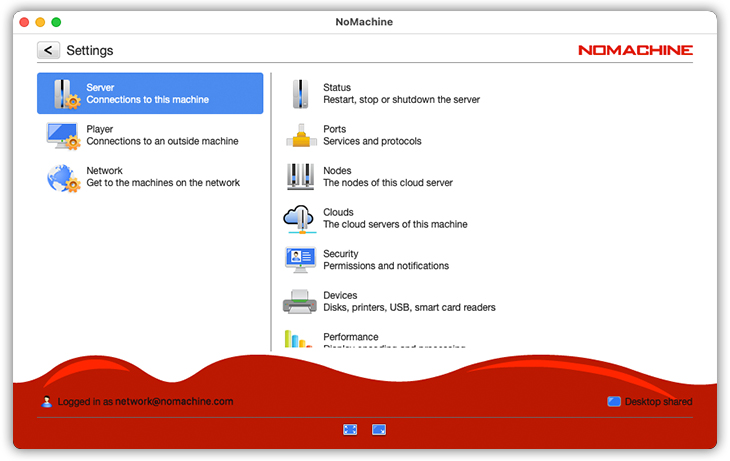
The 'Clouds' item is not present in the free version of the NoMachine server. That's because the free server cannot be added as a node to any of the products of the Cloud Server family. The 'Clouds' item is present for the other server types and from that panel, you can interact with the cloud server being the parent of this server.
When the server is a Cloud Server, also the 'Nodes' item is present. In the Nodes panel, if you're a system administrator or a NoMachine administrator, you can administer all the NoMachine servers being part of this Cloud Server multinode environment.
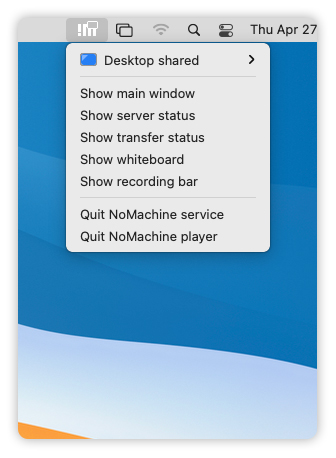
You can also access the server settings, and then all the other settings panels, from the NoMachine monitor in the system tray by clicking on Show server status:
Administrative rights are required to change server settings!
When you enter any of the available items, check on the bottom left of the Server Settings UI to see if 'Changes are disabled' (default) or not.
By clicking on the Changes disabled link you will be requested to provide authentication credentials for a user with administrative privileges. You will be prompted with the same request also when trying to modify any of the available settings if changes have not been previously enabled.
3.1. Status
Server status
Indicates what IP address to use in order to connect to this computer.
If the machine is available on NoMachine Network, it shows its Machine Id, use this if you prefer to connect by NoMachine Network service and own a valid subscription for that. If the computer is not on Network, the Status panel provides a link to add this computer to that service.
This panel reports also the current status of the NoMachine server: click on 'Restart the server' to restart it, on 'Stop the server' to disable accepting new connections (current connections will be not terminated) or on 'Shut down the server' to shut down the server and all services. You will be able to choose if restarting automatically the server at next reboot (system startup) or not.
It shows also if the server is on Network or not and indicates if the desktop is shared or not.
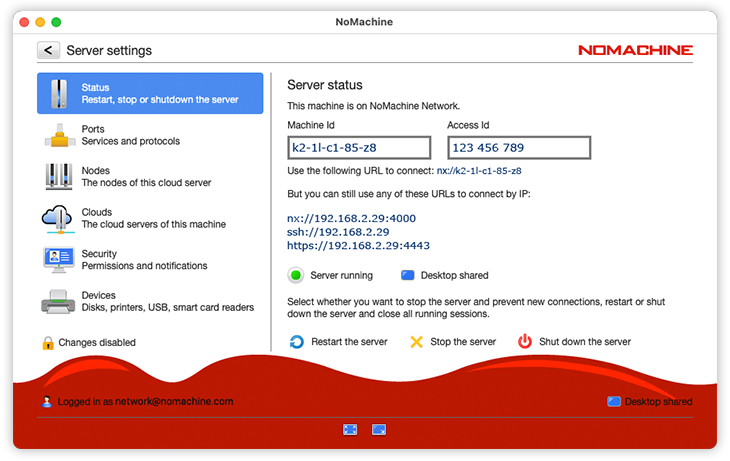
Scroll down to see all the other information. The Server activity section shows:
All connected users
All users connected to this server, also those who are not yet connected to a desktop. Click on the link to access the list of users and in case disconnect any of them.
This desktop
Users already connected to the desktop from which you opened this Server Status panel.
All desktops
Users already connected to all desktops, included the local one. It applies to a server managing a multinode-environment. Click on the link to access the list of users and in case disconnect any of them.
All active transfers
All file transfer operations made from users connected to the desktop from which you opened this Server Status panel.
The Server statistics section shows data about average connections and file transfer. Statistics can be resetted.
3.2. Ports
The Ports panel shows the current status of NoMachine services necessary to accept connections over the network, but not of the server itself. It lists all the services in use and on what port the service is listening:
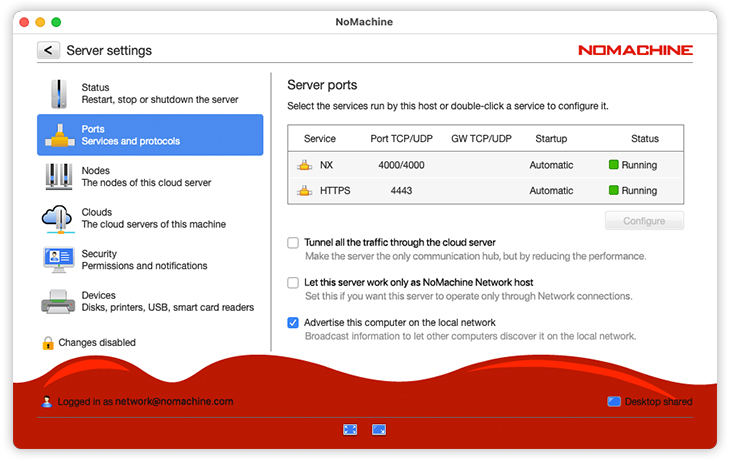
In the Ports panel, the NoMachine free version and the Entperise Terminal Server Node provide only 'NX' which is the NoMachine service (nxd) in charge of accepting connections by NX protocol.
The other NoMachine servers list also the HTTPS service necessary to serve sessions on the web.
Tunnel all the traffic through the cloud server
This option applies to a Cloud Server. Connections are by default forwarded to the nodes when possible, or tunneled through the Cloud Server when not possible. Enable this option to always tunnel all data traffic through the Cloud Server.
Let this server work only as NoMachine Network host
This option applies to whichever server type (except the free version of NoMachine) published on NoMachine Network. By default it's possible to connect to the server by the Network service or by its IP/hostname. Check this option if you don't want to allow connections by IP/hostname but only via Network.
Advertise this computer on the local network
Enabled by default. Enable in order for the computer to show up in other users' connection lists when on LAN. Other users will see this computer provided they have not checked the box 'Don't show other computers on the network' in the Settings -> Player -> Security panel. Disabling will stop the broadcast of computer's availability on LAN.
To start/stop/restart a service, modify its port, enabling the automatic port mapping in the router (UPnP) and select the start mode (automatically or manually), highlight the service and click 'Configure' to access the its configuration panel.
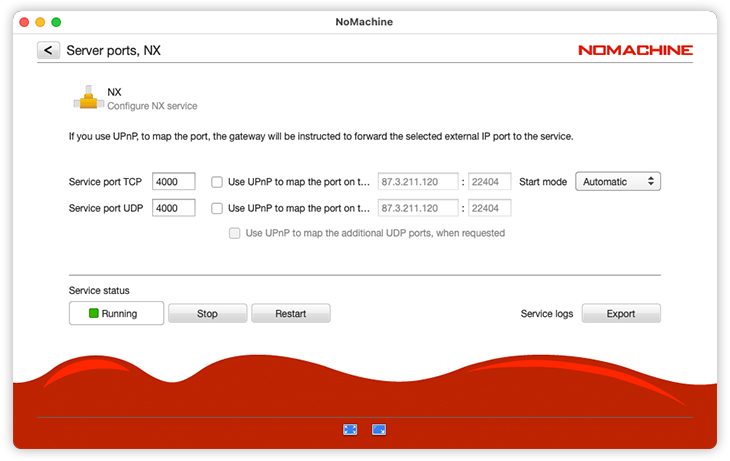
Use UPnP to map the port on the gateway IP
Check this option to let NoMachine try to configure automatically your router for port forwarding.
Start mode
By default it's 'Automatic', the service will automatically start at every computer boot. Otherwise, choose 'Manual'.
Some remarks:
- Changing the service's port requires to restart NoMachine.
When changing the service port, it's always requested to restart the NoMachine server. This will terminate all current connections and on Linux it will terminate also all virtual desktops, even those disconnected. - Port mapping is not enabled by default, it's necessary to flag it. The automatic port mapping requires that the router supports the UPnP or NAT-PMP protocol. Otherwise it will be necessary to configure the router manually. The automatic port mapping is disabled also for the NoMachine free version.
- You may disable the port mapping by unflagging it if you do not expect connections from outside your private network.
3.3. Nodes
The Nodes panel is available only if this server is a Cloud Server. It allows to add servers as nodes of this Cloud Server, manage and remove them:
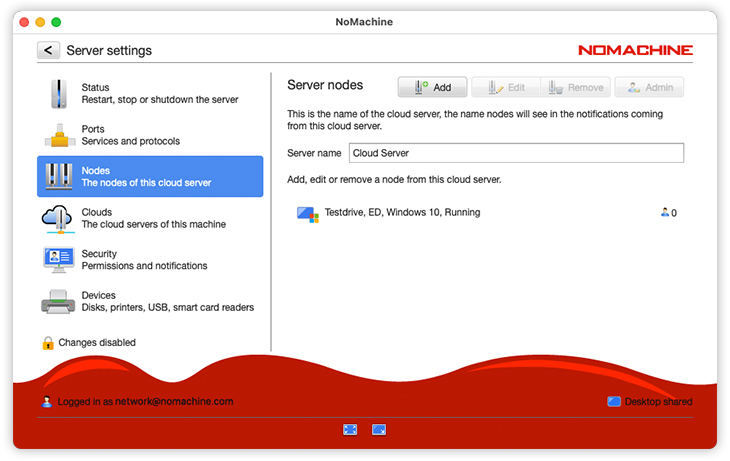
Give a name to your Cloud Server in the 'Server name' field, this is mandatory. Then button 'Add' will be enabled and you will be able to add nodes.
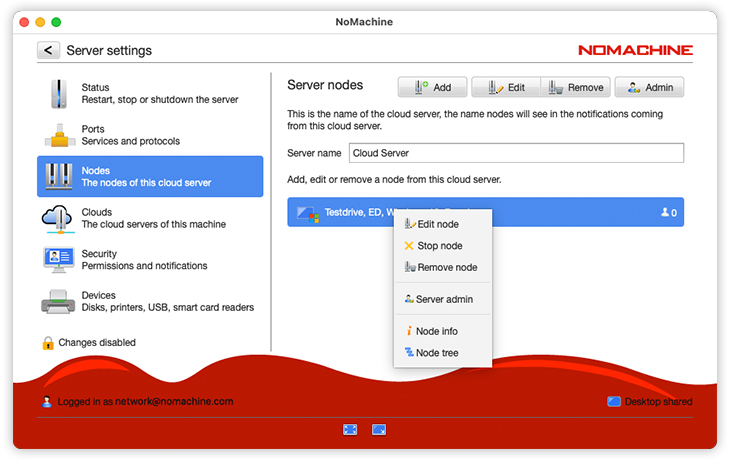
Mouse click on the node to show a menu for editing the server, removing it or retrieving information.
From the same menu you can also 'Stop the node' (the node will not accept new connections but current sessions stay running), connect to the node in 'Server admin' mode to open the remote server administration UI, display the position of the node in a tree graphical representation of the multinode infrastructure, useful especially in case of multilevels.
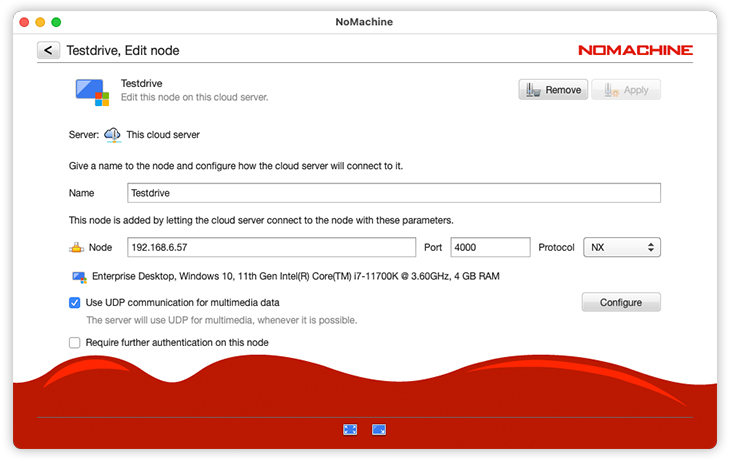
Editing the node allows to change some settings, included its IP:
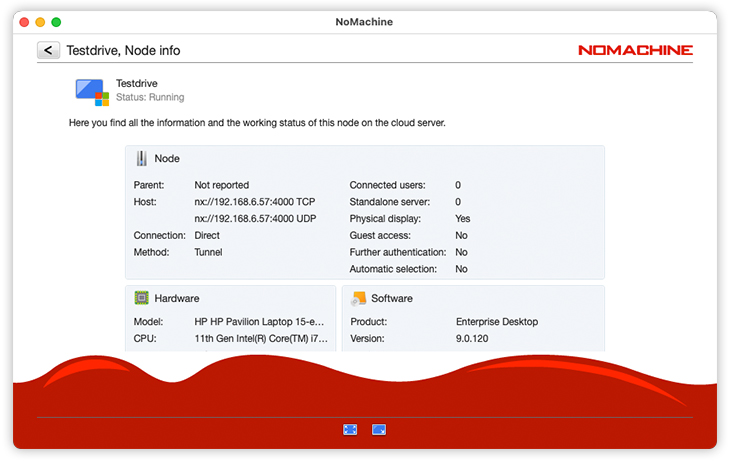
The Node info panel shows various information about the node host and average connections statistics:
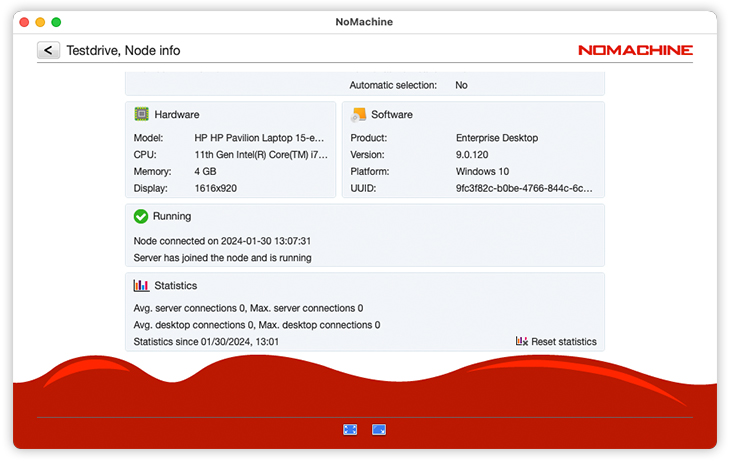
scroll down to see also its status and statistics:
3.4. Clouds
This panel is available for all server types, except NoMachine free which cannot be part of a Cloud Server multinode environment and the NoMachine Terminal Server Nodes which work only if associated to an Enterprise Terminal Server.
From this panel you can add, manage and remove this server to a Cloud Server (parent cloud server):
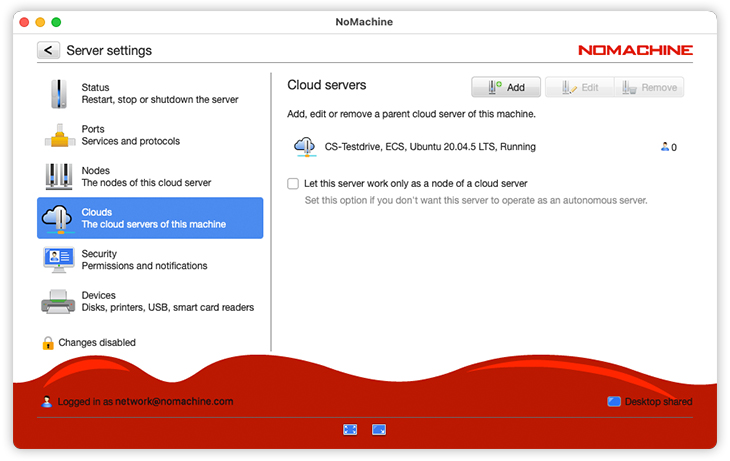
Let this server work only as a node of a cloud server
By default users can connect to the server installed on the node via the Cloud Server or directly by using the IP/hostname of that server. Select this option if you want to forbid direct connections to the node.
Mouse click on the parent Cloud Server to open a menu for managing it:
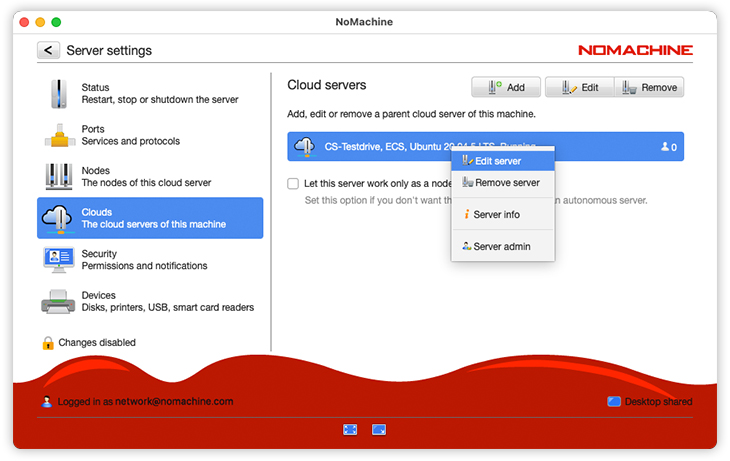
Click on 'Edit server' to modify settings for the Cloud Server, included its IP:
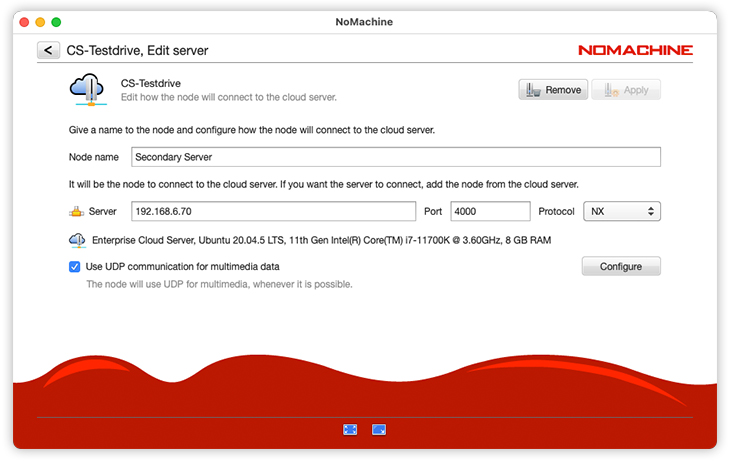
The Cloud Server info panel shows various information about the Cloud Server host and average connections statistics:
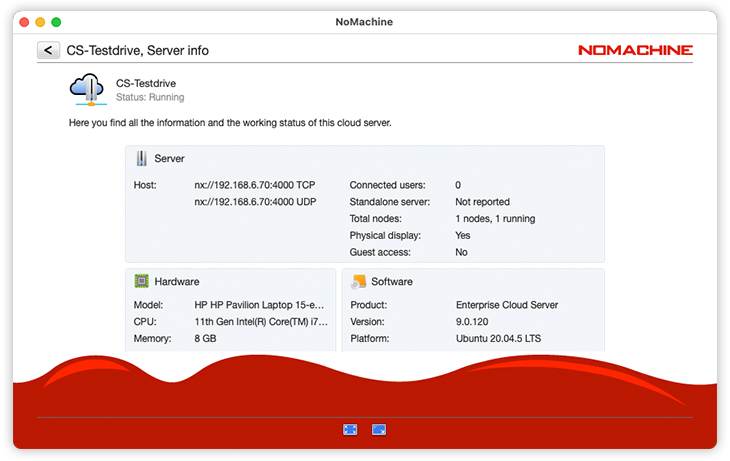
Scroll down to see also statistics and other information:
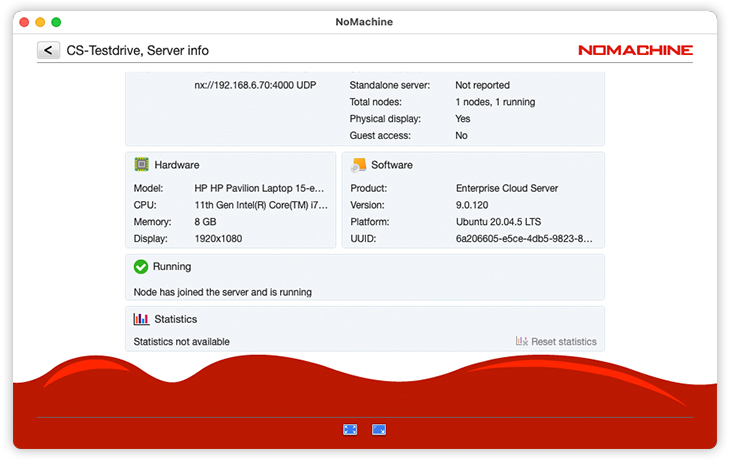
Statistics not available means that nobody connected yet to this host.
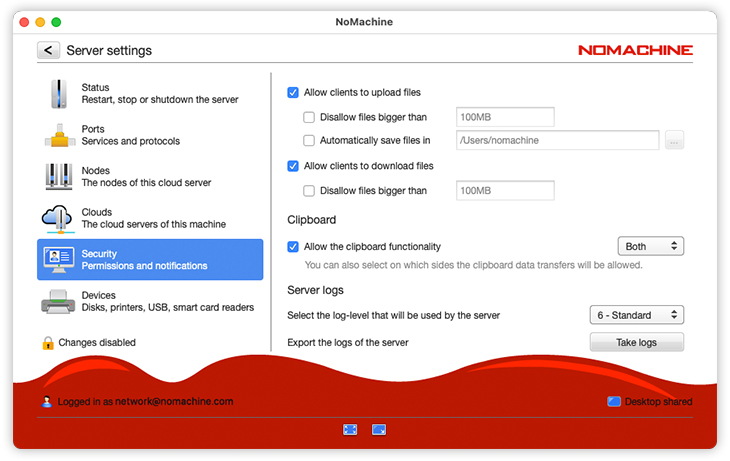
3.5. Security
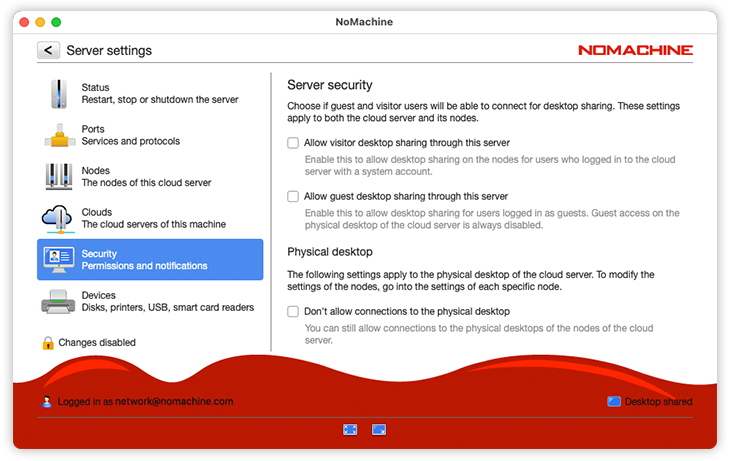
In Security you can enable/disable guest desktop sharing access and configure how you (and other users) can access and interact with your remote desktop.
Settings for the physical desktop of a Cloud Server or for an Enterprise Terminal Server apply only to that server, to modify settings for a node it's necessary to open the UI on that node.
It's possible to disallow connections to the physical desktop in all products except NoMachine free and the Enterprise Deskop.
A substantial difference between terminal servers like the Workstation and the other server types is that terminal servers have also a section to configure behaviour for NoMachine virtual desktops.
Images in this section are mainly from the UI of the Enterprise Desktop, which is suitable also for the free edition. It will be reported when the image is from another product.
Server security
Allow visitor desktop sharing through this server
This option applies only to a Cloud Server. Enable this option to allow visitors users to connect to this desktop upon your approval. Visitors are users who have an account on the Cloud Server but don't need to have it on the node. They are not anonymous because they logged-in to the Cloud Server host.
Allow guest desktop sharing access on this server
Enable this option to allow guest desktop sharing users to connect to this desktop upon your approval. Guest Desktop Sharing users don't need to have an account (e.g. username and password) and are anonymous. With the Cloud Server they are anonimous also on the nodes.
In section 'Physical desktop' or 'Desktop access' you can configure user's access to the physical desktop of this server.
Don't allow connections to the physical desktop
This option is not present if the server is the free version of NoMachine or the Enterprise Desktop. Select this option if you want to prevent users from connecting to the physical desktop of this server. In case of a Cloud Server, users will still be able to connect to the physical desktop of the nodes, unless you disable that on the node(s).
Only allow users connections for desktop sharing
Use this option when you want to explicitly accept or deny the incoming user's request for access. It requires that a user is sitting in front of the computer to authorize or deny incoming requests. This setting is not suitable for unattended computers.
Make access available when the system is still in the login screen
When enabled, users can connect to the login screen i.e. when nobody is already logged.
Don't allow the owner of the desktop to connect if the desktop is not shared
This option is related to the Desktop shared/not shared setting. By default, the owner of the desktop can connect even if the desktop is not shared.
Scroll down, section 'Choose how the users in front of the desktop will see the physical screen' allows you to enable protection for the remote desktop. The following two options apply only to physical desktops:
Blank the physical screen when somebody connects
Disabled by default. Check the box to enable screen blanking and block mouse and keyboard input. Useful for unattended remote computers to prevent others from entering data or viewing the monitor while you are remotely accessing it. An option for the screen blanking, Disable the screen shading effect when the screen is blanked, allows to disable the fading effect (the screen stays black for few seconds and then loops through different levels of grey till black).
Lock the physical screen on disconnect
Disabled by default. This option can be used in conjuction with the screen blanking: even when the last user didn't lock the screen before disconnecting by NoMachine, as soon as the screen is unblanked the system lock screen will be activated automatically to keep the remote desktop protected even if the computer is running unattended. Useful for unattended remote computers to prevent others from entering data or viewing the monitor while you are remotely accessing it.
The next section deals with user acceptance for desktop sharing, which by default requires that the user's request for access is always approved by the desktop owner, when different.
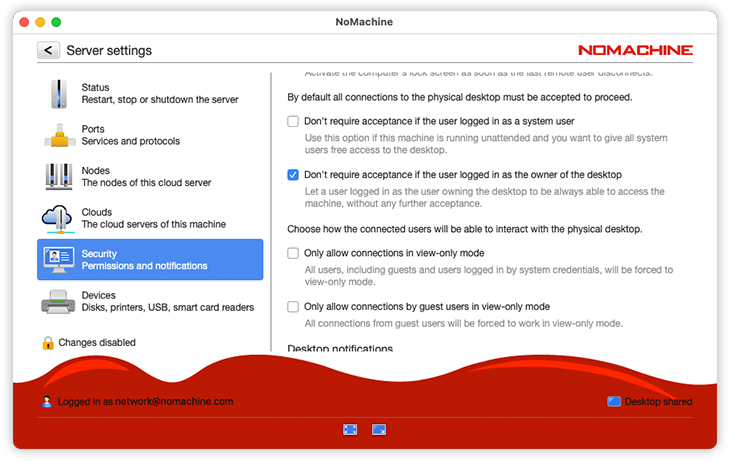
Don't require acceptance if the user logged in as system user
Disabled by default. By checking the box, users with a valid account on this host can connect without the need of the desktop owner's approval. This configuration is suitable for unattended computers.
Don't require acceptance if the user logged in as the owner of the desktop
Enabled by default. If someone is trying to connect to your desktop, a pop up message asking for your permission appears. By default such authorization is not requested if the connecting user is also the desktop owner, or if he/she is a system administrator or a NoMachine administrator or trusted user. If the computer is unattended, this option should be turned off.
The next section is about desktop interaction. The owner of the physical or virtual desktop can switch for each of the connected users between view-only and interactive mode at any moment, from the !M menu by opening the list of 'Connected users' and selecting the user.
Only allow connections in view-only mode
Disabled by default. Checking the box means that all users (either guests or users with a valid account) will connect in view only mode and will not control keyboard and mouse.
Only allow connections by guest users in view-only mode
Disabled by default. Checking the box means that guest users will connect in view only mode. Users with a valid account will connect instead in interactive mode.
Scroll down, terminal servers products for Linux like the Workstation or the Terminal Server have an additional section to configure Virtual desktops. They mirror settings for connections to the physical desktop. Cloud servers, Enterprise Desktop and NoMachine free don't have it.
Don't require acceptance if the user logged in as system user
Disabled by default. By checking the box, users with a valid account on this host can connect without the need of the desktop owner's approval. This configuration is suitable for unattended computers.
Don't require acceptance if the user logged in as the owner of the desktop
Enabled by default. If someone is trying to connect to your desktop, a pop up message asking for your permission appears. By default such authorization is not requested if the connecting user is also the desktop owner, or if he/she is a system administrator or a NoMachine administrator or trusted user. If the computer is unattended, this option should be turned off.
Don't require acceptance if the user logged in as the owner of the desktop
Enabled by default.The owner of the virtual desktop can connect to any of his/her virtual desktops already running without the need of owner's approval.
Only allow connections by guest users in view only mode
Disabled by default. Checking the box means that guest users will connect in view only mode. Users with a valid account will connect instead in interactive mode.
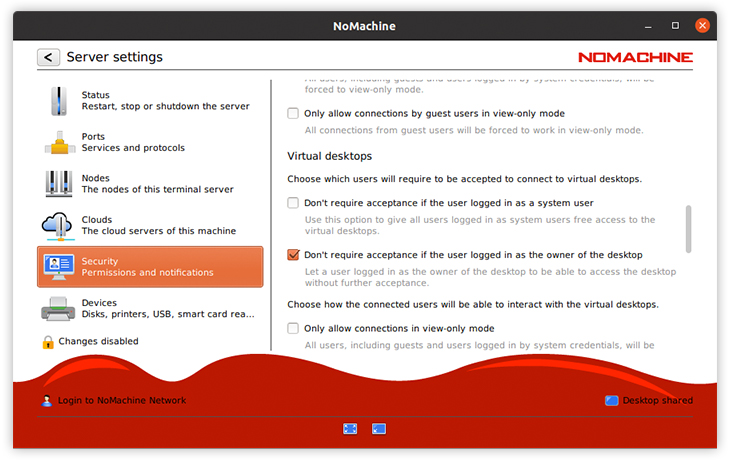
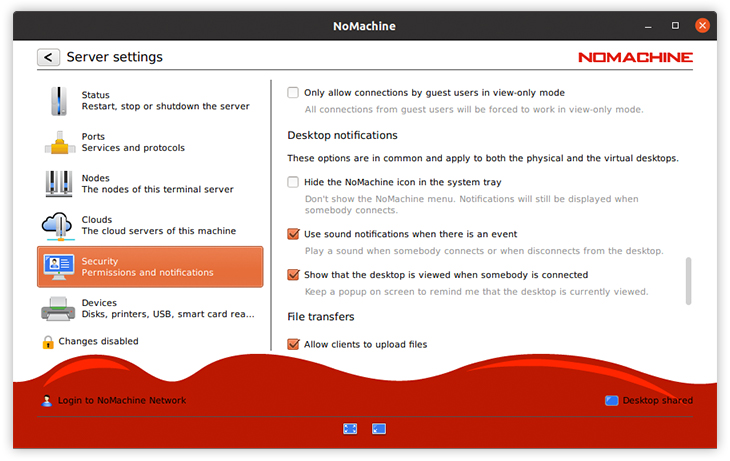
Scroll down to see the Desktop notifications section.
Hide the NoMachine icon in the system tray
By selecting this option, the !M menu in the system tray is no longer displayed.
Use sound notifications when there is an event
Enabled by default. If a user connects or requests to connect to the desktop, or a user disconnects, a sound will be emitted.
Show that the desktop is viewed when somebody is connected
Enabled by default. Display a pop-up to remind you that a user is connected and can see all activities made on your desktop.
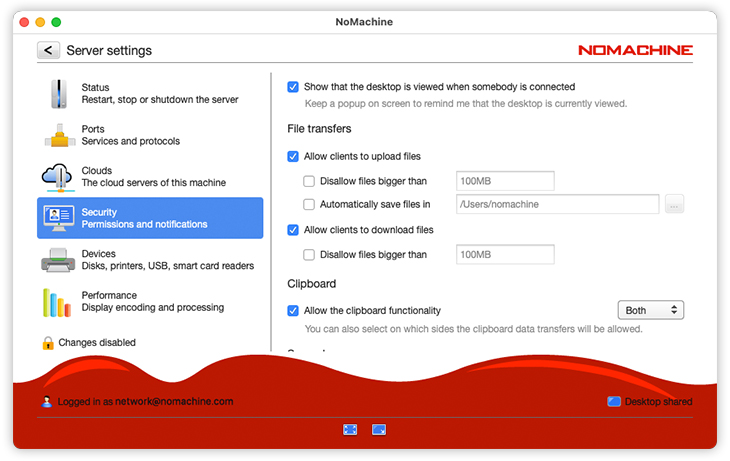
Scroll down to see the File transfers section:
Configure whether connecting clients are allowed to upload and download files from the computer, set any size limitations and specify the location where files must be saved. Connecting client must have the 'Allow others to send you a file' box checked.
Allow clients to upload files - enabled by default, it ensures that others connecting to this computer can send files to the server.
Allow clients to download files - enabled by default, it allows users connected to this computer to download files from the server.
In the Clipboard section:
Allow the clipboard functionality - allow or forbid copy and paste operations from local to remote and/or vice-versa. You can decide on which side the it's allowed to transfer data.
The last section is about Server logs: it allows to set the log level and retrieve the NoMachine logs from the host where this UI is open.
3.6. Devices
From this panel it is possible to manage which kind of devices can be shared within the session, printers, scanners, disks and more, including audio and microphone, useful when VOIP application is being used. . Uncheck any of the available options to forbid the sharing of the selected device. This will apply to both directions: users will be not able to mount a local device from their machine to the remote session and a remote device will be not connected from the server host to the user's machine.
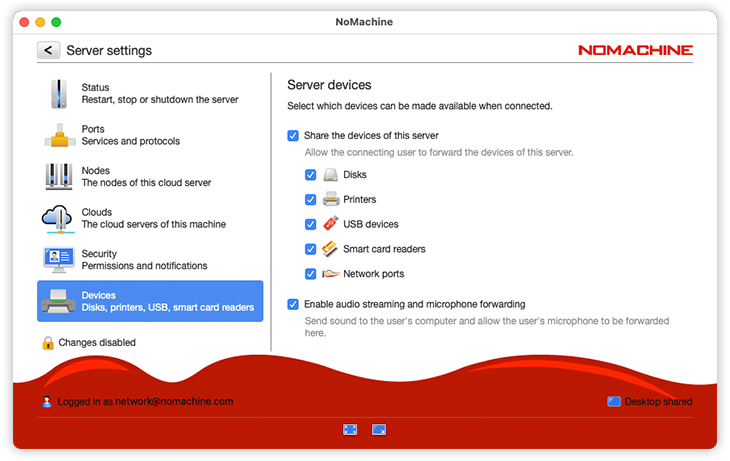
Devices that may be connected inside the NoMachine session are:
a) Disks
When this option is enabled, disk partitions can be mounted inside the session making their file system accessible. This is a two-way service and can be used for example for transferring a file from the remote desktop directly to a folder on the user's computer or vice-versa.
Users may decide if their connected disks will be private or public. A private disk is accessible only by the user who connecte it, public disks will be available for all users who will connect to the same (physical or virtual) desktop. By default private disks are mounted in the user's desktop, while public disks are mounted in the following directories:
- on Windows in C:\Users\Public
- on Linux in /media
- on macOS in /Volumes
Other ways to transfer a file between the user's device and the remote server host:
- Drag and drop the file from the local desktop to the remote desktop in the NoMachine session or vice-versa.
- Use the transfer file option available in the !M menu (click on the !M icon in the system tray to open it).
b) Printers
When this option is enabled, two-way printing is supported: client-side printers can be integrated with the server-side printing subsystem and vice-versa.
Note that since the CUPS printing subsystem (on Linux and Mac) doesn't accept printer names containing spaces, NoMachine replaces a blank space with an underscore.
When users print from their PC to a printer on the remote printer in a session running on Linux, they cannot have feedback on the print job status due to a limitation of the printing subsystem.
When connecting their printer, users may make it private or public. A private printer is accessible only to the user who shared it, while a public printer will be available for all users.
Troubleshooting
Specific system configurations may be requested when the NoMachine server is on Linux or Mac systems. When the NoMachine Server is installed on Linux or Mac it's possibile that the printing system doesn't work out-of-the-box and some configurations on the server host may be required. In particular:
- - Print with CUPS 1.4 or later: https://www.nomachine.com/AR05K00674
- - Print to Mac 10.10: https://www.nomachine.com/AR09M00860
c) USB devices
When this option is enabled, users can forward USB devices over the network such as hard disk, web cams, barcode readers, and pen drives from local to remote desktops and vice-versa.
Note that when users forward a local USB device to the remote session, this devices is connected on the remote machine and is no longer visible on the user's computer. For example, if it's a pendrive, it will stop to blink on the user's computer until it is connected with NoMachine. If it's a mouse, all inputs will be transferred on remote and will not have any effects on the user's local cursor.
Troubleshooting
This applies to NoMachine server installations on Linux. If the USB service is disabled in the Server preferences interface, it is likely that the USB module has not been compiled on your Linux during the installation of NoMachine. Instructions for manually compiling the USB module are available here: https://www.nomachine.com/AR12J00658
c) Smart card readers
When this option is enabled, users may forward the smart card reader plugged into their computer to the server host and make available the smartcard authentication inside the session. This can be integrated with a Kerberos Ticket system for example to implement single sign-on (SSO).
The users's smart card device should support the PKCS#11 industry standard for smart card interfaces.
e) Network ports
When this option is enabled, users can create virtual network interfaces and establish a bridge between local and remote sides or vice-versa to provide transparent access to network resources. This service allows access to any of the default network servers like Samba, CUPS, FTP, SSH and Telnet or any other type, for example a MySQL server.
f) Enable audio streaming and microphone forwarding
This further option in the Devices panel allows to disable audio to avoid that sounds or music played inside the session is forwarded to the user's device. The same applies to the user's microphone.
For end-users
When users connect to the physical desktop, they may decide if forwarding their audio or not in the 'Audio streaming' panel that is displayed at session start-up. By default the 'Mute audio on the server while I'm connected' option is enabled and audio played inside the NoMachine session is not played on the server host.
By default microphone is always disabled: users will have to activate it from the NoMachine menu panel inside the session, by clicking on the 'Mic in' icon button. Click on the right upper corner of the session window to open the menu or press Ctrl+Alt+0
Some remarks:
- Connecting disks, printers, USB devices and Network ports are all two-ways services. It's possible to disable the device forwarding only from client to server or vice-versa by manually editing the node configuration file (node.cfg).
- A strong connection with a low ping time minor than 30ms and without spikes of ping time is strongly recommended to grant stable USB forwarding.
3.7. Performance
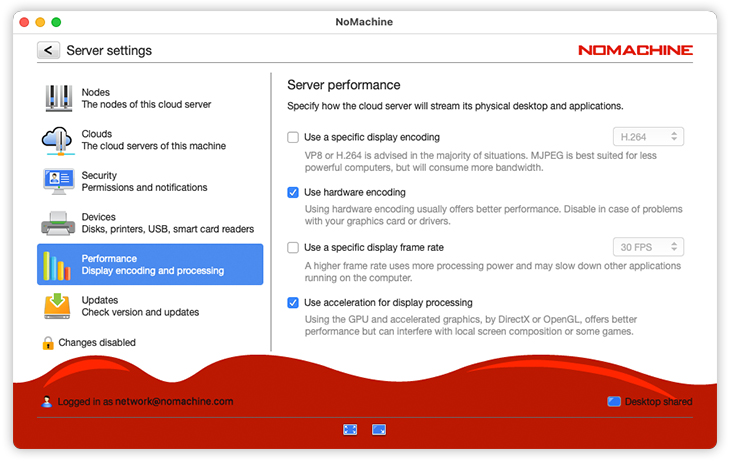
In the majority of cases, it won't be necessary to interfere with these settings since NoMachine will carry out the necessary checks and optimizations to give the best possible performance.
By default NoMachine uses H.264 hardware encoding/decoding if both server and client host have an adequate GPU. Otherwise it uses H.264 software encoding/decoding by means of H.264 codec libraries included in the NoMachine package. To use another codec like VP8 or MJPEG, select it in the server settings.
Note that NoMachine supports H.264 hardware encoding/decoding for these types of sessions:
(i) Connections to the remote physical desktop.
(ii) Linux virtual desktops without activating the X11 vector graphics mode.
(iii) Web sessions with support for WebRTC enabled
and H.264 software encoding/decoding for these types of sessions:
(i) Connections to the remote physical desktop.
(ii) Linux virtual desktops without activating X11 vector graphics mode.
(iii) Multimedia content in Linux virtual desktops in X11 vector graphics mode.
(iv) Multimedia content in custom sessions.
(v) Web sessions with support for WebRTC enabled
Use a specific display encoding
Configure a specific type of encoding (server side), choosing from H.264, VP8 and MJPEG.
There are some cases where MJPEG might be more suitable such as when accessing a less powerful computer (legacy PC or computer with reduced CPU and RAM specifications). Selecting MJPEG will consume more bandwidth.
Use hardware encoding
Enabled by default, use H.264 HW encoding when the graphic card supports it and hardware decoding is available on client side.
H.264 SW encoding/decoding
All NoMachine server packages, included the evaluation and the free version, provide libraries for H.264 software encoding.
NoMachine Enterprise Client provides libraries for H.264 software decoding.
H.264 HW encoding/decoding
NoMachine supports H.264 hardware encoding provided by graphics cards with Nvidia Kepler microarchitecture onward, Intel Quick Sync video cards on Windows and Linux (with manual configuration) and AMD card at the moment on Windows and Linux.
H.264 hardware decoding is supported on Windows and Mac hosts with hardware accelerated video cards (GPUs) and Linux with Video Acceleration API (VA-API).
Use a specific display frame rate
This option refers to the number of images that are displayed in one second of video streaming. If you enable this option, consider that using a higher frame rate allows to reproduce motions more smoothly but requires more CPU and may slow down other applications running on the server host. Deciding to use a higher or lower frame rate mainly depends on what users will play and on the server host HW resources. For example watching an action movie or game may require a higher frame rate while a lower frame rate should be enough for surfing the web or using an application.
Use acceleration for display processing
Enable/disable using HW acceleration for frame processing on the server. To enable support for HW acceleration, select the Use acceleration for display processing option. HW acceleration for display processing is applicable to Windows only with support for DirectX (OpenGL on Mac and Linux coming soon).
Due to the huge possible combinations of drivers, video cards and operating systems, it is possible that hardware acceleration doesn't work with NoMachine. In this case it's suggested to disable it.
Note that it's possible to use HW acceleration for Linux virtual desktops in X11 vector graphics mode through the use of the VirtualGL library. This is independent from the 'Use acceleration for display processing' option in the GUI.
Use X11 vector graphics mode in virtual sessions (on Linux only)
On Linux, enable/disable the X11 vector graphics mode by means of the Use X11 vector graphics mode for virtual desktops option. This applies only to virtual desktops and custom sessions running in a virtual desktop. Note that custom sessions running in a floating window are always in X11 vector graphics mode. X11 vector graphics mode can instead be disabled/enabled for custom sessions running in a virtual desktop.
The X11 vector graphics mode is enabled by default. It reduces the bandwidth usage (and the HW requirements because it is less CPU intensive) on both client and server by optimizing the X11 protocol by means of compression techniques, round trip suppression and cache algorithms. This method is convenient when working with traditional GUIs or large amount of text to avoid loss of image quality, but it's not suggested for multimedia contents or applications with many graphical effects.
3.8. Updates
The Updates panel shows information about the server type which is installed (e.g. NoMachine Enterprise Cloud Server) and the NoMachine version and the license validity (if applicable).
In this panel you can also manage how NoMachine must handle software updates.
NoMachine software by default is configured to fetch the repository for automatic updates. You can override this by clicking 'Check now'. To disable it, unflag the Automatically check for updates option. When this is instead enabled, it's possible to let the software download the updates automatically by selecting Install updates in background. Installing updates always requires an explicit approval.
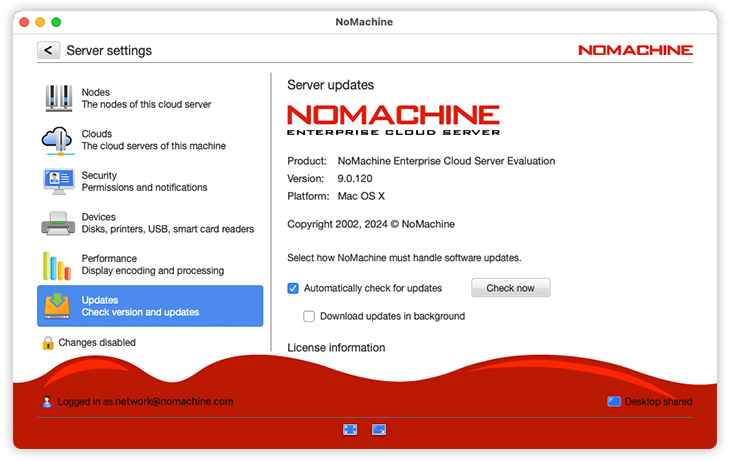
Scroll down to access the License information section. Server installations and Enterprise Terminal Server Nodes need only one license file, server.lic.
Click on 'Server subscription' to display the license file .
To replace it with a new one click on 'Update subscription'. Replacing the license is needed in two cases:
a) to install your customer subscription in order to replace the license for evaluation that comes with the package.
b) if you're using a customer license on premises, to replace it when it's expired, to continue to use the software. This is not necessary if you're using a license validated online.
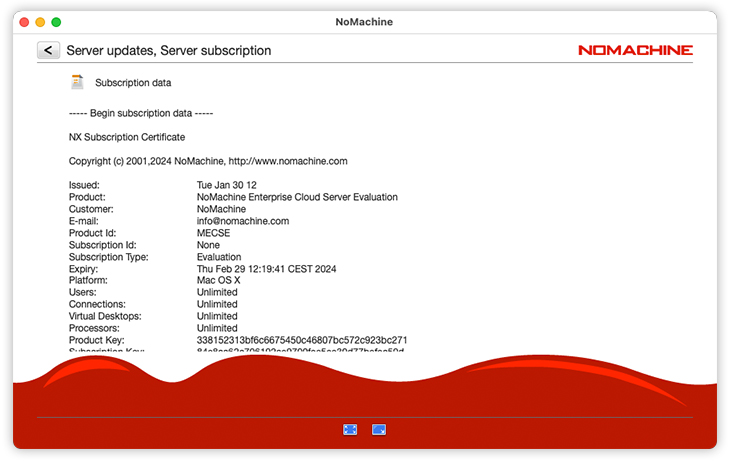
3.9. Desktop Shared/Not Shared
At the bottom of the UI, when there is a server installed, there is a small icon which controls fast track access to the desktop sharing functionality. When 'Desktop shared' is selected connections to that desktop are on.
When 'Desktop not shared' is selected, it's not possible to connect to that desktop:
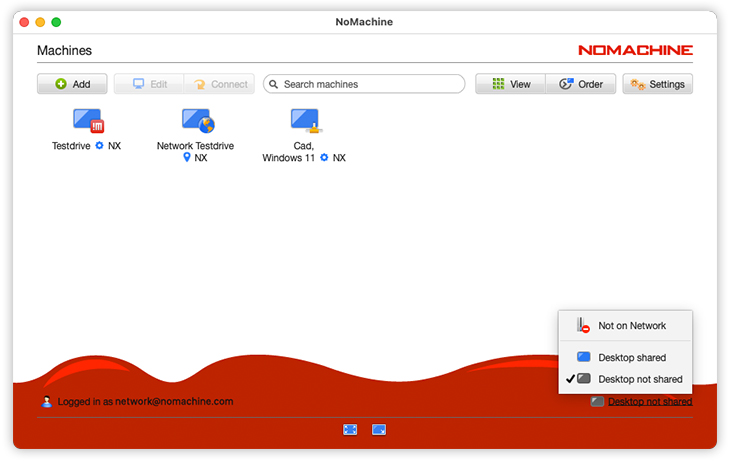
If the computer is your own and you need to access it remotely, you can still connect even when the desktop is not shared, if your user is also the owner of the remote desktop.
NoMachine Network
4. How to access the NoMachine Network Settings
The possibility to access the NoMachine Network services is available with all NoMachine products. If you have installed a server - included the free version - you can make that machine available on NoMachine Network via the Settings -> Network options. Via Network services it's also possible to enable two-factor authentication (2FA), regardless if the connection to the server happens by traditional IP or Network service.
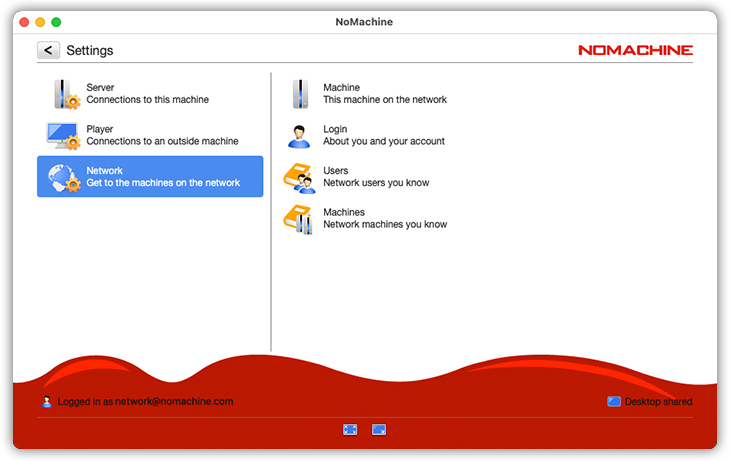
4.1. Machine
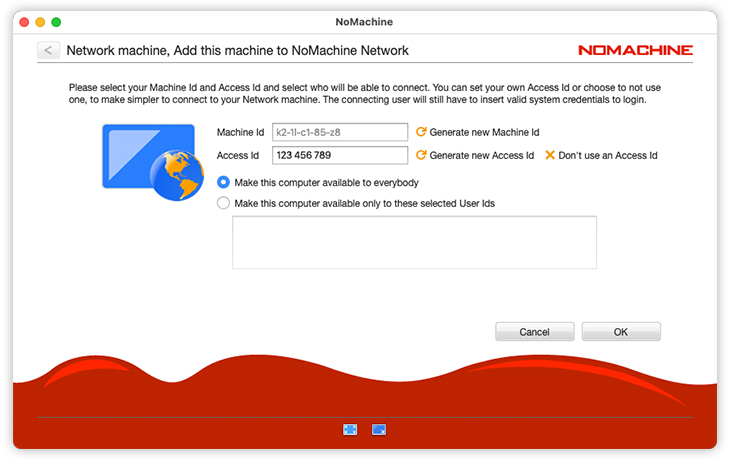
From this panel you can connect this machine to NoMachine Network. In the Machine panel you can also enable 2FA for accessing to the desktop of this machine.
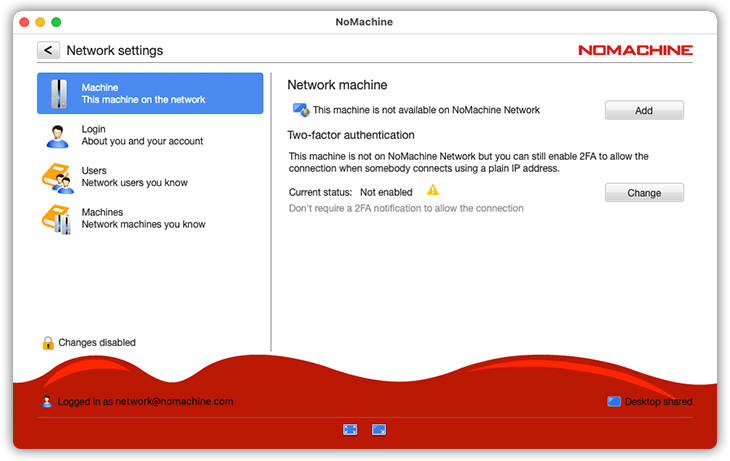
Click on Add to add this machine to NoMachine Network. A Machine ID and an Access Id code will be generated automatically: if you need that someone connects to your machine via Network, that person will need to know both. You can also decide to make your machine available to everyone (default) or to specific NoMachine Network users only.
4.2. Login
Create from here an account for NoMachine Network, if you haven't it yet or login to the service.
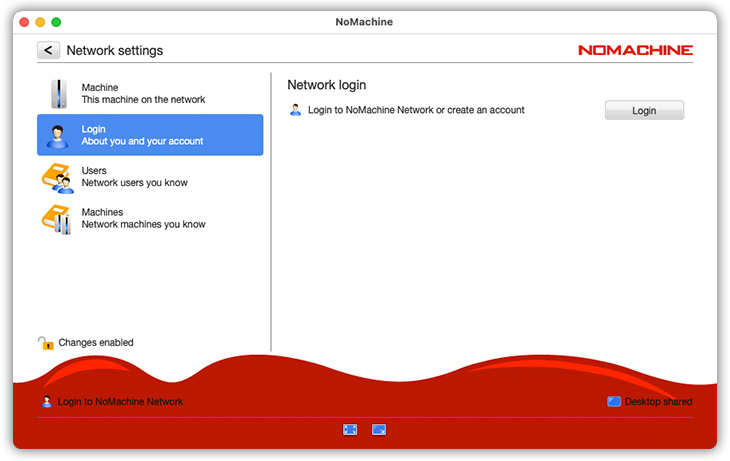
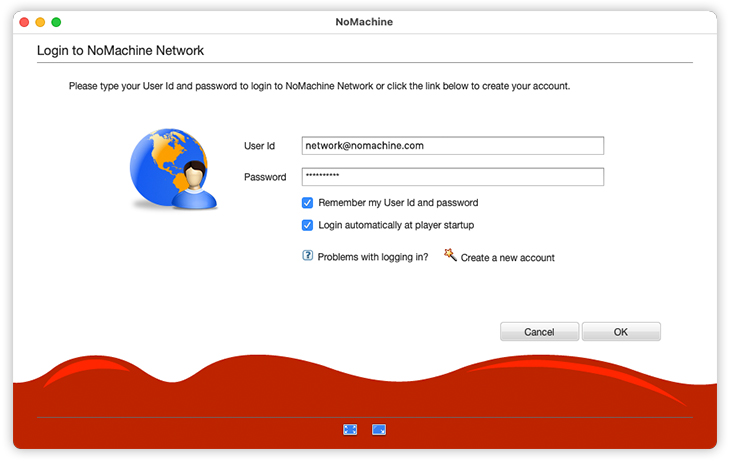
Click on Login to proceed and provide your credentials to proceed.
4.3. Users
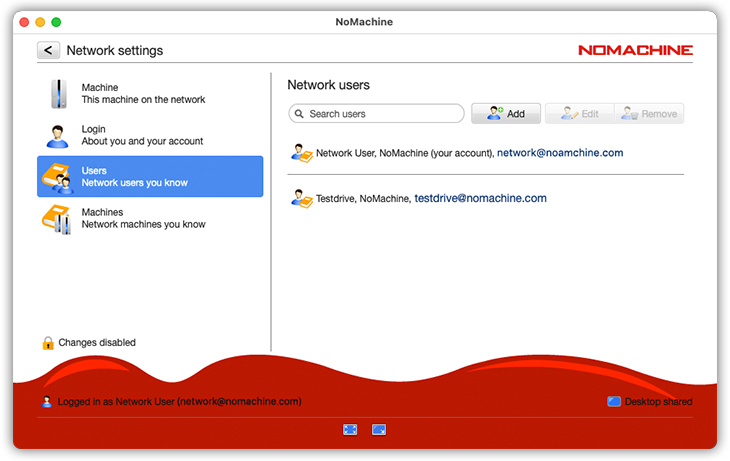
Consider this panel like your Address book for Network. It lists users you know, you can add, edit or remove each of them. You need to be logged-in to NoMachine Network to see them. Note that 'Search users' searches among users in your Address book, not in the whole Network.
4.4. Machines
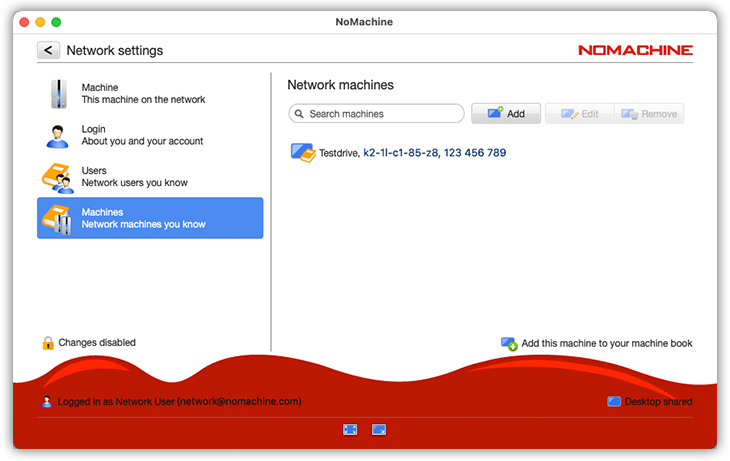
This panel is instead like an Address book of known machines published on NoMachine Network. Also in this case, you can add, edit or remove each of them once you're logged-in to Network. By editing a machine, you can set a new Machine Id and/or Access Id, if the machine's owner changed any of them.
NoMachine Server admin
5. How to access Server and Network Settings from Remote
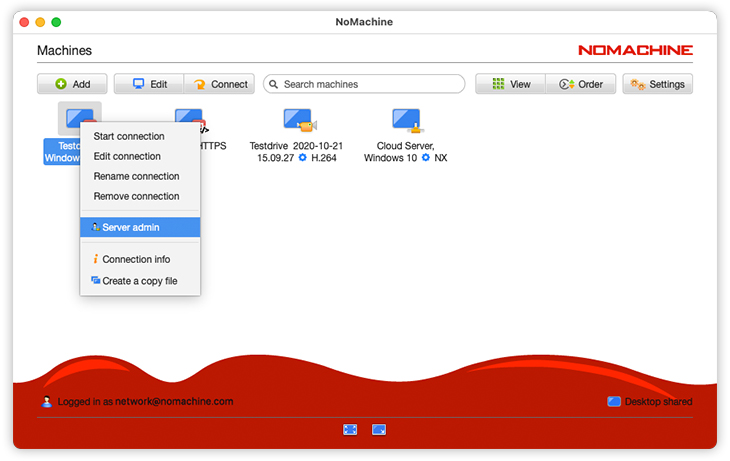
To open the UI for administering any server from remote, open the client UI on your computer, select the remote server that you want to administer in the 'Machines' panel and right mouse click to open the menu. Choose 'Server admin' and login as administrator to that server host when requested:
5.1. Server
When the player is connecting in 'server admin' mode, it allows to administer the server remotely through an interface very similar to the local server UI.
Once logged - if you have privileged permissions, i.e. you're a 'sudo' user on macOS and Linux and an 'administrator' on Windows, you will see an interface very similar to that one you can open on server localhost, but the menu on the left will show only 'Server' and 'Network' sections ('Player' section is not available from remote).
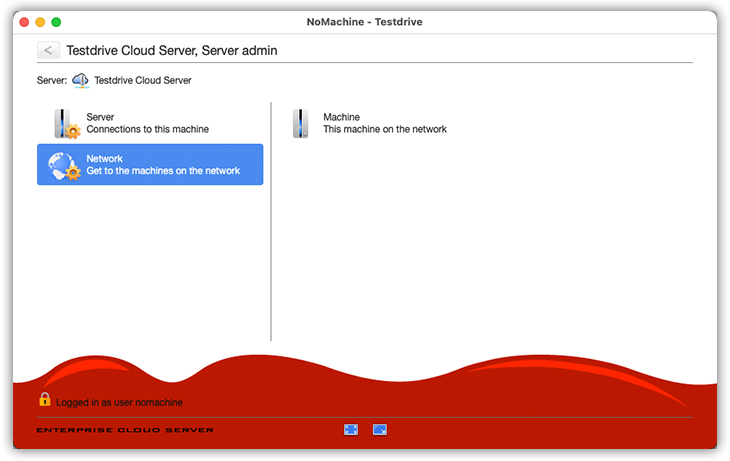
The server section is mostly the same of the local server UI:
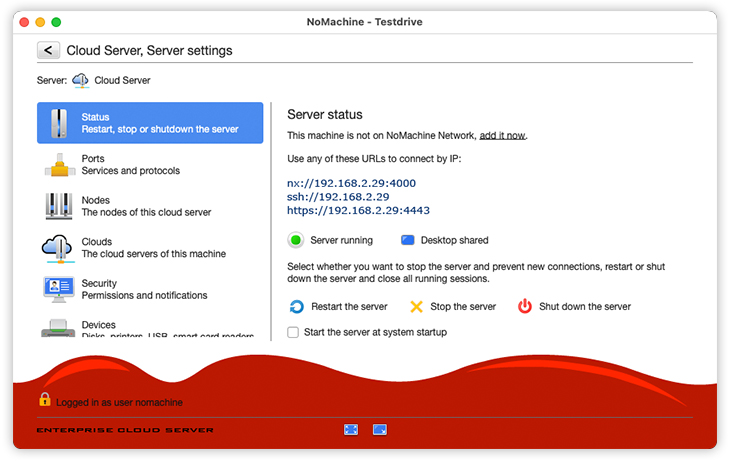
All the items in the left menu are the same of the local Server UI, please check the related chapter to find out their description.
5.2. Network
The Network section allows to configure only the remote machine where the Server admin is connected.
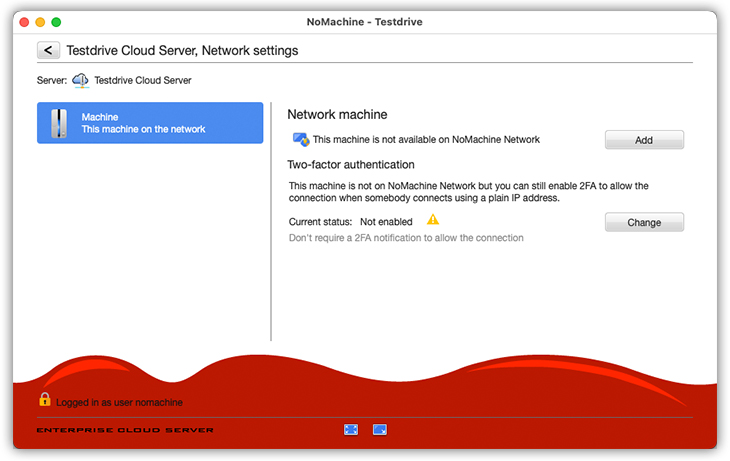
The Machine panel is the same of local Network -> Machine UI, please check the related chapter for details.