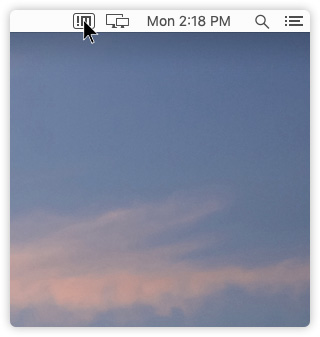
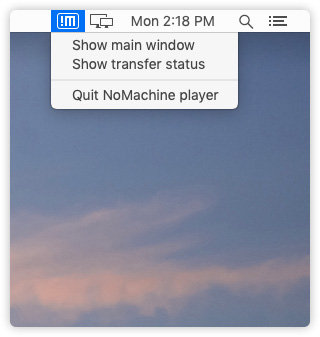
| 4. The Connection Monitor of the Server (nobody is connected) |
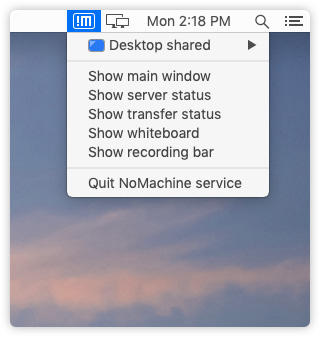
Fig. 6 – The Connection Monitor Menu of the server when nobody is connected
| TIP |
 |
|
|
|
| When ‘Show main window’ is clicked or the User Interface is open via Programs or Applications, the Connection Monitor Menu shows also the ‘Quit NoMachine Player’ item. |
Clicking on ‘Desktop shared’ disables/enables sharing of the physical screen of this host.
At the bottom of the UI there is small icon which controls fast track acces to the physical desktop of this host. Switching on/off this icon makes the same as clicking the ‘Desktop shared’ in the menu. If the computer is your own, and you need to access it remotely, it’s advisable to keep turned on.
| TIP |
|
|
|
|
You can hide the ‘Desktop shared’ item from the Connection Monitor menu by editing the node configuration file:
/usr/NX/etc/node.cfg on Linux
%PROGRAMFILES%/NoMachine/etc/node.cfg directory on Windows
/Applications/NoMachine.app/Contents/Frameworks/etc/node.cfg on macOS
Set there:
EnableAcceptingConnection 0
|
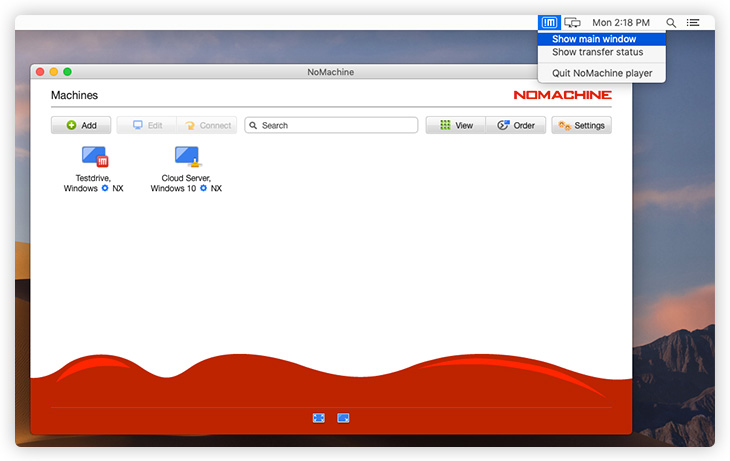
It opens the client User Interface and displays by default a welcome panel that shows the IP of this host, to be used for connecting from another device to the desktop of this machine.

Fig. 7 – Connection Monitor (server) -> Show main window, the welcome panel
Click on ‘Ok’ leads to the ‘Machines’ panel displaying the connections you already created and the NoMachine servers available in your network, if any.
From the main window you can start an existing connection or create a new one. You can also access ‘Settings’ to configure the client and the server settings.

Fig. 8 – Connection Monitor (server) -> Show main window, the ‘Machines’ panel
It opens the User Interface on the Server settings section, with focus on the ‘Server status panel’.
From this panel you can easily see if the server is running and you can restart or shutdown it. It also displays users actually connected to this host and give the possibility to disconnect any of them.

Fig. 9 – Connection Monitor (server) -> Show server status
| 4.4. Show transfer status |
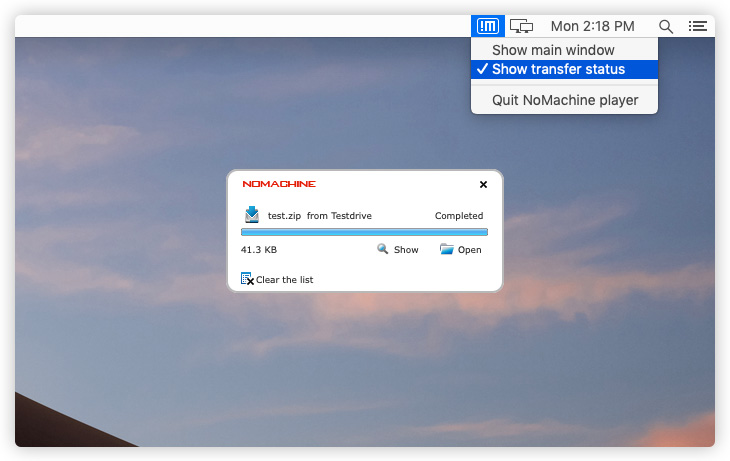
It displays files transferred from user’s device to this computer.
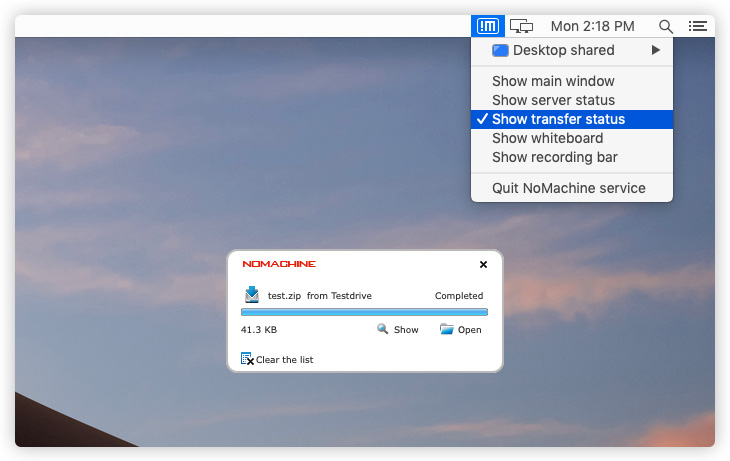
Fig. 10 – Connection Monitor (server) -> Show transfer status
It displays the NoMachine whiteboard, a tool which allows NoMachine users connected to this computer to exchange messages and drawings. It also provides ‘Upload a file’ and ‘Download a file’ buttons for easily transferring files while using the tool. Note that all users connected to the same desktop will see the content of the whiteboard.
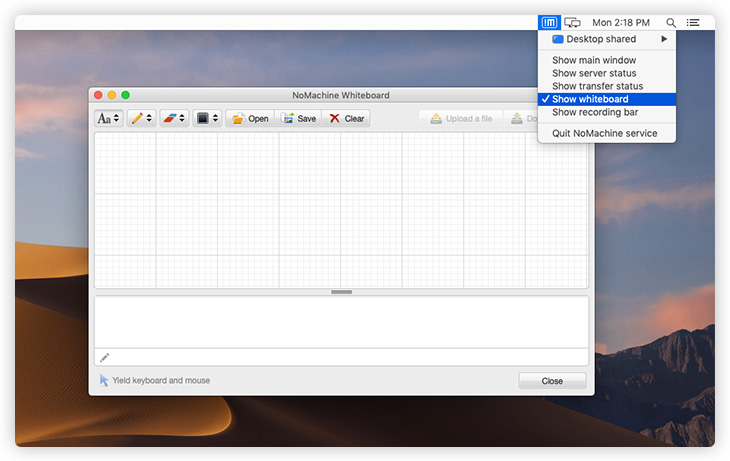
Fig. 11 – Connection Monitor (server) -> Show whiteboard
| TIP |
|
|
|
|
You can hide the ‘Show whiteboard’ item from the Connection Monitor menu by editing the node configuration file:
/usr/NX/etc/node.cfg on Linux
%PROGRAMFILES%/NoMachine/etc/node.cfg on Windows
/Applications/NoMachine.app/Contents/Frameworks/etc/node.cfg on macOS
Set there:
EnableWhiteboard 0
|
It opens the recording tool to start recording the desktop. Even if nobody is connected to this host, you can use it for recording a video of your activities on the physical desktop.
In case of a Linux host, when the recording tool is opened inside the NoMachine virtual desktop, it records activities made inside that session.
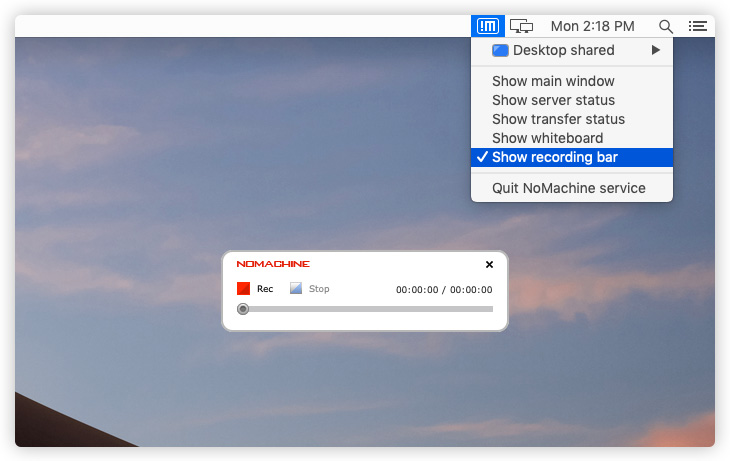
Fig. 12 – Connection Monitor (server) -> Show recording bar
| TIP |
|
|
|
|
| NoMachine video recordings are .nxr files which can be opened by a H.264-capable player (except QuickTime Player, at the moment). |
| 4.7. Quit NoMachine service |
This is a shortcut to shutdown the NoMachine server and all services. A dialog is issued to confirm that. Administrative privileges are requested to perform the shutdown, you will be requested to authenticate as administrator or root user on Linux. Once authenticated, all services will be shut down and the !M icon will disappear from the system tray.
By default, NoMachine server and services will be restarted at the next boot.
Otherwise you can launch the NoMachine User Interface from Programs or Applications, access Settings -> Server and start the server from the ‘Status’ panel.
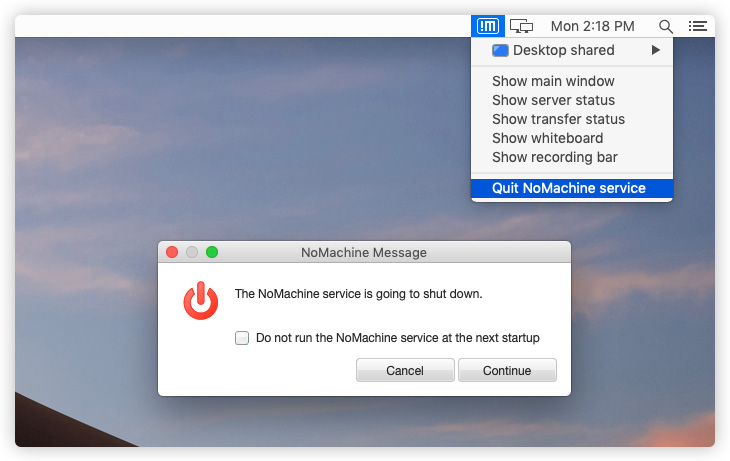
Fig. 13 – Connection Monitor (server) -> Quit NoMachine service
When ‘Show main window’ is clicked or the User Interface is open via Programs or Applications, the Connection Monitor Menu shows also the ‘Quit NoMachine Player’ item.
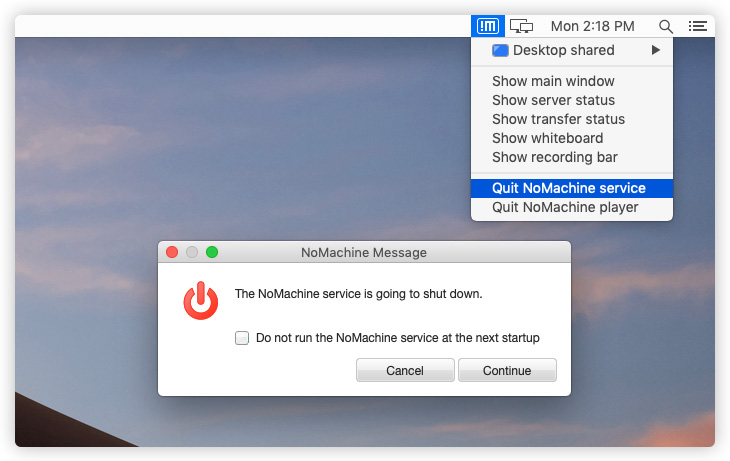
Fig. 14 – Connection Monitor (server) -> Quit NoMachine service and NoMachine Player
| 5. The Connection Monitor of the Server (someone is connected) |
When somebody is connected to this computer, some additional items appears in the Connection Monitor Menu. They are:
‘Yeld input control to’
‘Transfer a file’ and
‘Open menu panel’.
When ‘Show main window’ is clicked or the User Interface is open via Programs or Applications, the Connection Monitor Menu shows also the ‘Quit NoMachine Player’ item.
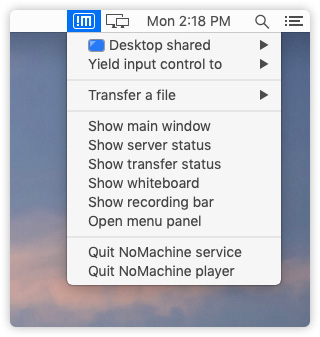
Fig. 14 – The Connection Monitor Menu of the server, when somebody is connected to this machine
| 5.1. Yeld input control to |
When different users are connected in interactive mode (default) to the desktop, each of them can gain control on keyboard and mouse. Use ‘Yeld input control to’ to assign exclusive input control to the selected user. All the other users will partecipate in view-only mode and will not be able to interact with the desktop.
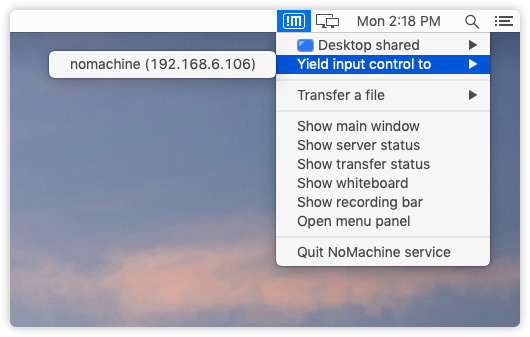
Fig. 16 – Connection Monitor (server) -> Yeld input control to the user of your choice
It opens a sub-menu to choose between uploading a file from the user’s device to this computer or vice-versa. As an alternative, you can drag & drop the file from local to remote or in the opposite way.
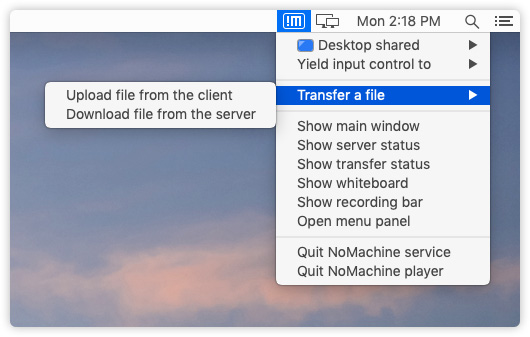
Fig. 17 – Connection Monitor (server) -> Transfer a file
This item is specific for NoMachine sessions, if clicked on the physical computer it doesn’t perfrom any action. When clicked inside a NoMachine session, it opens the Menu Panel for changing session settings on the fly.

Fig. 16 – Connection Monitor (server) -> Transfer a file
Detailed Menu Panel guides for clients on Linux, Windows and macOS are available in the Configurations section of the website: https://www.nomachine.com/all-documents.
| 6. Configure the Connection Monitor of the Server |
| 6.1. Hide the Connection Monitor Icon |
To hide the !M icon from the system tray, edit the node configuration file:
/usr/NX/etc/node.cfg on Linux
%PROGRAMFILES%/NoMachine/etc/node.cfg on Windows
/Applications/NoMachine.app/Contents/Frameworks/etc/node.cfg on macOS
Set there:
DisplayMonitorIcon 0
A notification dialog will be still issued when the user connects or disconnects to this computer.
To hide also the notification dialog, set in node.cfg:
DisplayMonitorNotifications 0
The authorization dialog to accept or deny incoming users’ connections will be still displayed to the desktop owner according to the server settings. This dialog is ruled by the PhysicalDesktopAuthorization and VirtualDesktopAuthorization keys in the server configuration file:
/usr/NX/etc/server.cfg on Linux
%PROGRAMFILES%/NoMachine/etc/server.cfg on Windows
/Applications/NoMachine.app/Contents/Frameworks/etc/server.cfg on macOS
|
|
|