





How to disable or re-enable Welcome panels shown at session startup (v.6 or earlier)
Welcome panels displayed at session startup are intended to provide usage information or quick access to most of the common settings, such as resizing the remote desktop to the client resolution. All these settings can be changed also in the NoMachine menu (ctrl+alt+0) to open it inside the session).
Welcome panels can be disabled in various ways: how to re-enable them depends on how they have been disabled.
The following instructions apply to NoMachine v. 6.
Settings for v. 5 and 4 are specified when different.
Welcome panels for sessions run by the NoMachine client:
1) To disable the Welcome sessions when opening the NoMachine application, users can check the box "Don't show this message again" at the bottom of the Welcome panel (see image below).
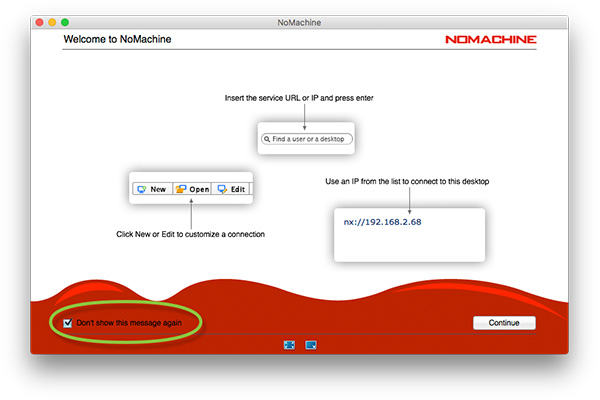
The client User Interface doesn't provide yet an option for re-enabling only the Welcome panels, users need to create a new connection to restore them.
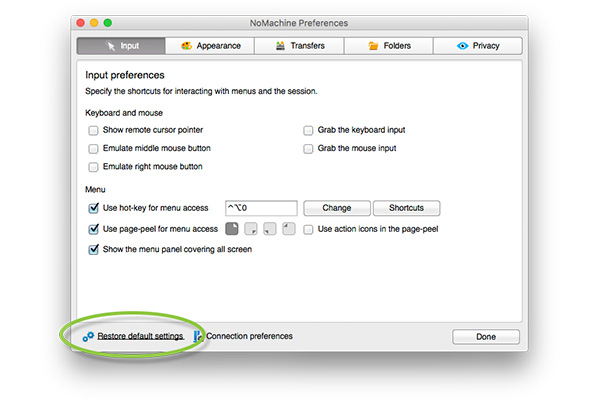
The User Interface allows to restore the default configuration, i.e. to reset all custom settings. This way is therefore advisable only if no other settings have been customized.
Welcome panels appearing before that the connection starts (i.e. the panel which publishes the local IP address of the computer and the connection wizard) can be re-enabled by using the "Restore default settings" button in the Settings panel of the client User Interface (see image below).
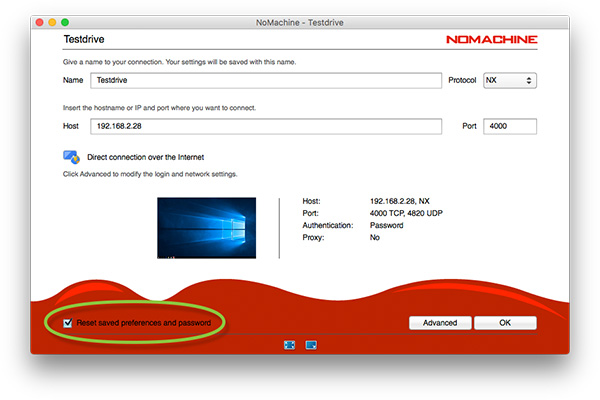
Welcome panels appearing when the connection to the desktop has been established, can be restored by checking the "Reset saved preferences and password" box while editing the corresponding connection settings (see image below).
2) Administrators may disable showing Welcome panels in the server configuration.
This setting applies to all connections by NoMachine client and via web-based sessions.
To disable showing the Welcome panels, set in the server.cfg file:
ClientMenuConfiguration input,display,display-mode,display-settings,connection,devices,devices-disk,devices-printer,devices-usb,devices-network,devices-smartcard,audio,audio-settings,mic,mic-settings,recording
I.e. list in the key all the available values except 'welcome'.
To re-enable the showing of Welcome panels, add 'welcome' to the list of values in the ClientMenuConfiguration key or set it to:
ClientMenuConfiguration all
Welcome panels will be shown again in new sessions.
3) Welcome panels can be also disabled on a per-client basis by setting in the player.cfg file on the user's computer:
<option key="Show address retrieving tutorial" value="false" />
<option key="Show connection wizard tutorial" value="false" />
<option key="Show menu panel tutorial" value="false" />
<option key="Show opening menu panel tutorial" value="false" />
<option key="Show video toolbar tutorial" value="false" />
To re-enable the showing of Welcome panels, set the corresponding key(s) to "true".
Welcome panels in web-based sessions:
1) Users can check the box "Don't show this message again" at the bottom of the Welcome panel.
Welcome panels will not be shown until the cookie is valid for that connection. To re-enable them, users need to clean the browser's cache and start the session again.
2) Administrators may disable showing Welcome panels for all clients by setting in the server configuration (the server.cfg file):
ClientMenuConfiguration input,display,display-mode,display-settings,connection,keyboard,clipboard
I.e. list in the key all the available values except 'welcome'.
To re-enable the showing of Welcome panels, add 'welcome' to the ClientMenuConfiguration key or set it to:
ClientMenuConfiguration all
Welcome panels will be shown again in new sessions.
3) Administrators may disable Welcome panels for all web sessions by setting in the server configuration (the server.cfg file):
EnableWebMenuTutorial 0
To re-enable showing Welcome panels, set:
EnableWebMenuTutorial 1
In NoMachine server v. 5 or 4 edit the cloud.cfg file to disable Welcome panels:
EnableMenuTutorial 0
or to re-enable them:
EnableMenuTutorial 1