How to connect to the physical desktop on NoMachine terminal servers (v. 7)
NoMachine terminal servers like Workstation, Small Business Server, Terminal Server and Enterprise Terminal Server + Terminal Server Nodes are tailored for providing users with personal desktops, named NoMachine virtual desktops or allow them to run single Linux applications (custom sessions). For those Linux environments requesting to give access only to the remote physical desktop, the NoMachine Enterprise Desktop is the most suitable solution.
Nevertheless, with the terminal servers, it's still possible to provide access to the physical desktop.
By default only to system administrators, NoMachine administrators and NoMachine trusted users. This corresponds to the following setting in the /usr/NX/etc/server.cfg file:
PhysicalDesktopSharing 2
To make a user trusted for connections to physical desktop, run on the NoMachine server host:
sudo /etc/NX/nxserver --useredit USERNAME --trusted physical
To allow instead all users to connect to the physical desktop, set the following in the /usr/NX/etc/server.cfg file (remove the pre-pending # from the key name):
PhysicalDesktopSharing 1
For the users
When you connect to the server, you will be presented with the option to create new virtual desktops or custom sessions or with the possibility to connect to the physical display if you're also the owner of the remote desktop.
If you don't see the physical display of the remote computer listed there, do the following.
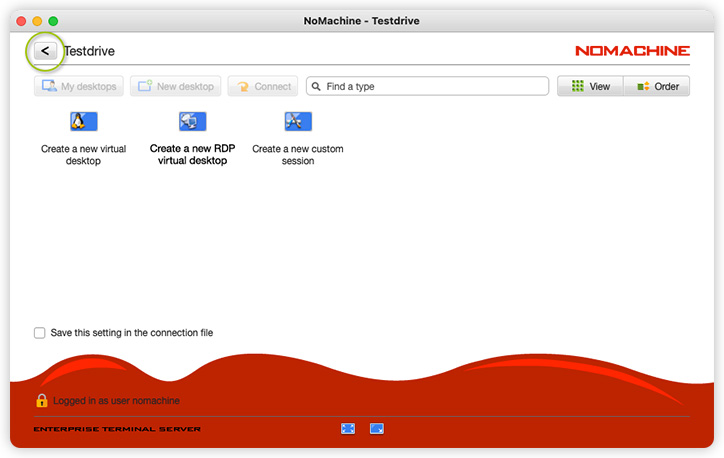
Click on the back arrow on the top left:
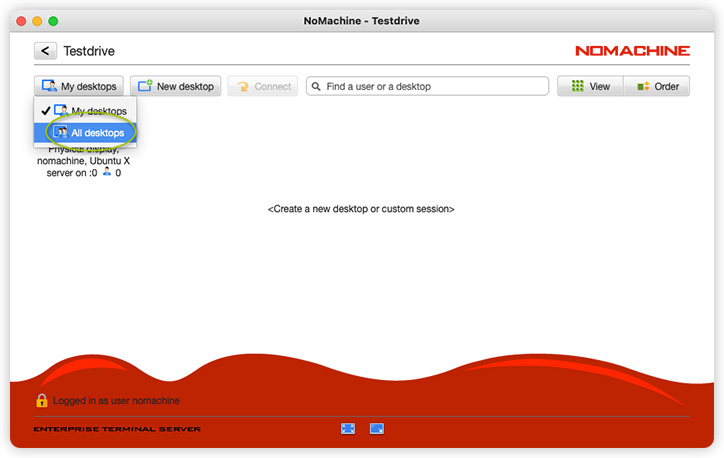
In the new panel be sure to select the 'All desktops' view mode, otherwise if you're not the owner of the remote desktop, the option to connect to the physical display will be not displayed: