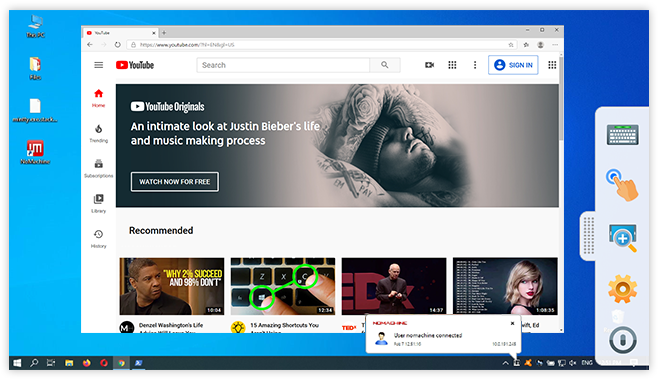
Using NoMachine as an Android or iOS thin client
This article is about how to connect mouse and keyboard to an Android/iOS device (smartphone or tablet) and how to cast the screen of the remote computer to a TV. Once done you can use your device as a full thin client!
Prequisites
a) Install NoMachine on your Android / iOS device as per-instructions here:
https://www.nomachine.com/getting-started-with-nomachine-for-android
https://www.nomachine.com/getting-started-with-nomachine-for-ios
b) Configure Google Chromecast (for Android) or Apple TV for iOS.
c) You have a bluetooth keyboard&mouse. Note that iOS 13.2 or later is required for bluetooth mouse support
| 1. How to configure Android and Google Chromecast | |
1. How to configure Android and Google Chromecast
Step 1 - Connect your bluetooth keyboard & mouse to your Android device.
To do that, open Settings → Connected Devices → Pair new device
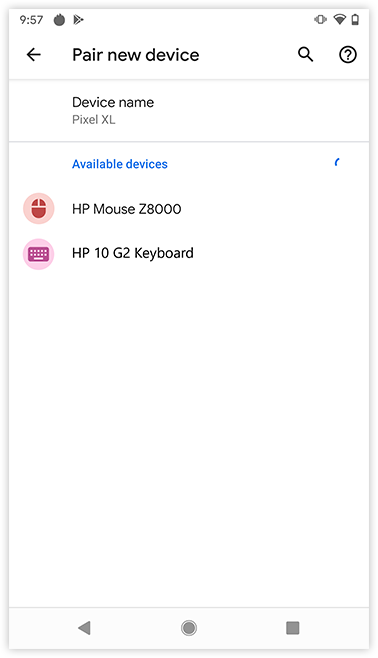
Then choose your keyboard device from the list. During the pairing of your keyboard, you will be presented with a code. You will need to type on your keyboard to finish the pairing.
Make the same for the mouse.
Step 2 - Connect to your Chromecast device using Google Home app and enable the sharing of the screen to your TV.
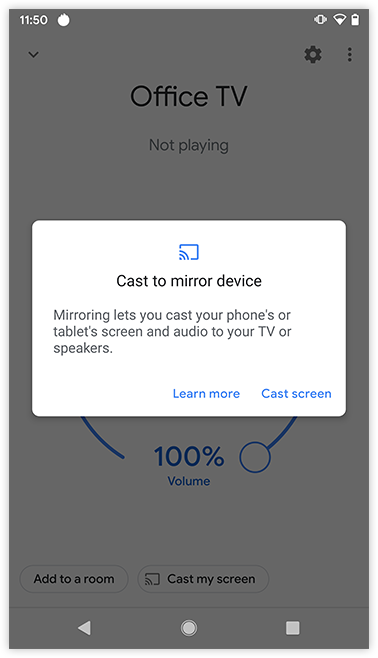
Step 3 - Launch NoMachine and connect to the remote desktop: it will be then mirrored in the TV screen!
2. How to configure iOS and Apple TV
Step 1 - Connect your keyboard to your iOS device.
To do that, open Settings → Bluetooth and choose your keyboad from the list of other devices:
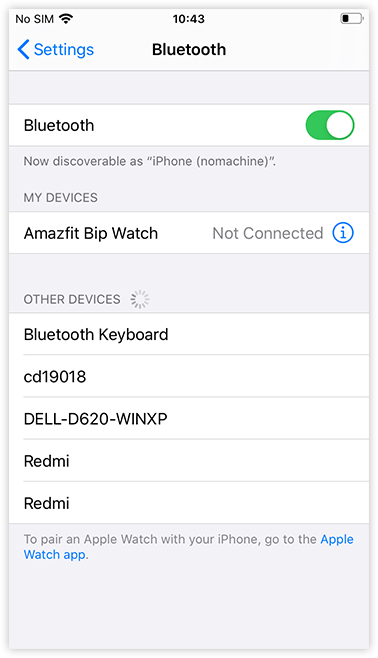
During the pairing of your keyboard, you will be presented with a code. You will need to type on your keyboard to finish the pairing.
IMPORTANT: Enabling the mouse requires to have iOS 13.2 or later.
To enable the mouse:
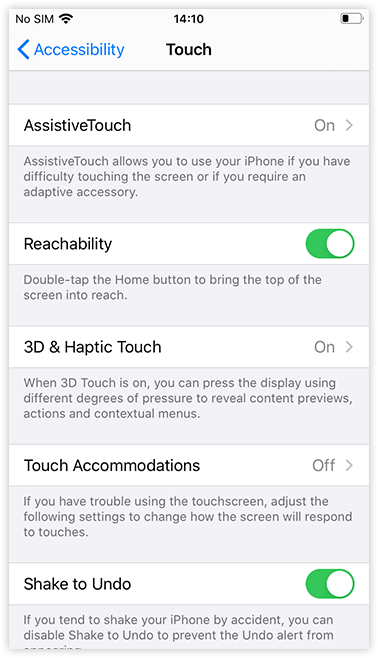
i) Switch Settings → Accesibility → Touch → AssistiveTouch ON.
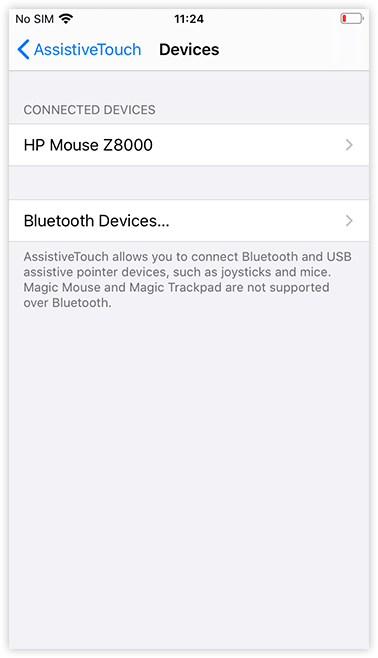
ii) In Pointer Devices, tap Devices → Bluetooth Devices and connect your mouse.
|
|
|
Step 2 - Enable screen share to your Apple TV
Ensure that both the Apple TV and the iOS device are on the same WIFI network.
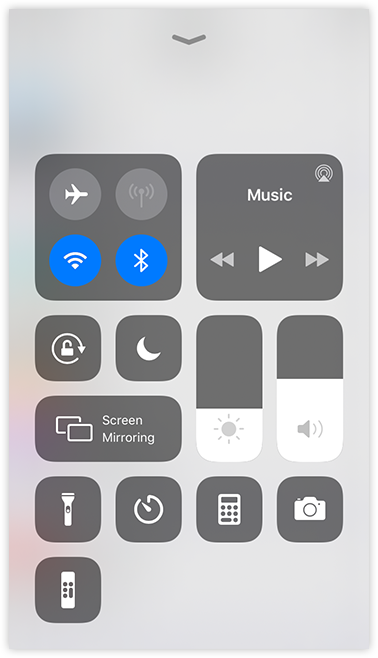
If your iOS version is iOS 12 or later, swipe down from the upper-right corner to reveal the Control Center (image on the left).
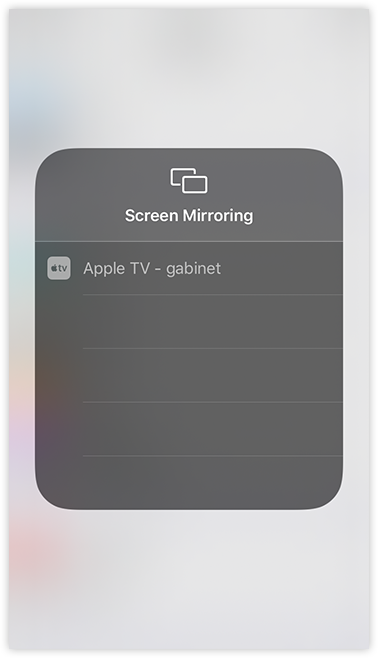
Otherwise, swipe up for Control Center instead and tap „ Screen Mirroring” and connect to your Apple TV (image on the right).
|
|
|
Step 3 - Launch NoMachine and connect to the remote desktop: it will be then mirrored in the TV screen!