





How to allow device sharing on macOS Apple Silicon with NoMachine v8.4.2 or later
This article applies to NoMachine v. 8.4.2 or later running on macOS Apple Silicon (e.g. M1, M2).
The kernel extension used for disk forwarding on macOS (com.nomachine.kext.nxfuse) has been updated in NoMachine 8.4.2, therefore it's necessary that such extension is allowed by the operating system in order to be loaded. If the kernel extension is not approved, the NoMachine application will install and work correctly but disk forwarding will be not available.
If you get a dialog reporting 'System extension blocked', click on 'Open security preferences' to enter Security and & Privacy panel. If you see message 'Your current security settings prevent the installation of system extensions' it means that the mac is running in Full Security mode and you need to switch to the Reduced Security mode in order to approve the kernel extension.
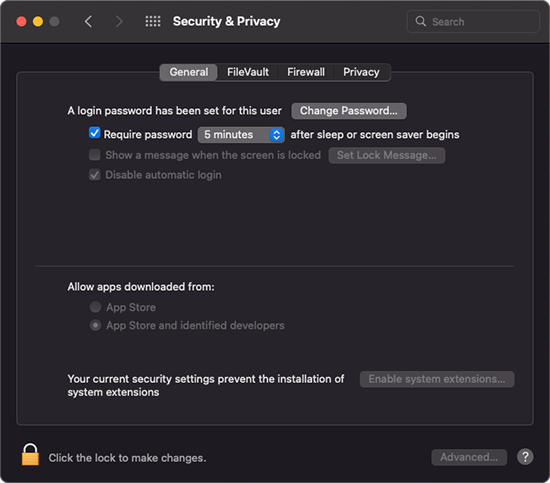
To do that follow instructions below, or go to the last section of this article if you're already opearting in 'Reduce Security' mode.
1) Turn off your your mac.
2) Turn your mac on by keeping the the power button pressed till a screen with 'Options' appears.
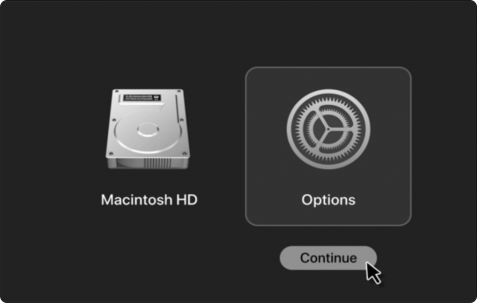
3) Select 'Options' and click on the 'Continue' button.
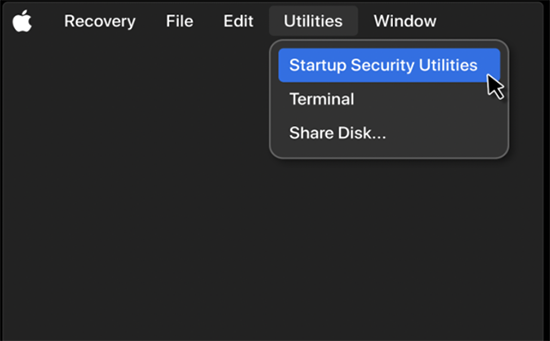
4) In the top screen menu select Utilities-> Startup Security Utilities.
5) In the next panel, select the primary HD and click on the 'Security Policy...' button.
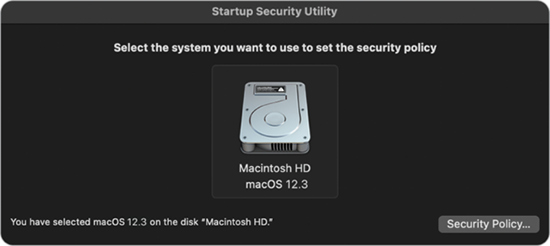
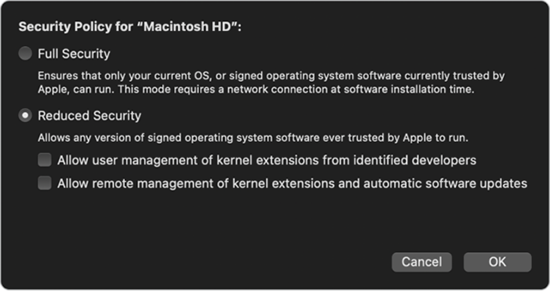
6) In the 'Security policy' panel, choose 'Reduced Security mode' and 'Allow user management of kernel extensions from identified developers'. Click on the Ok button to proceed.
7) Reboot the mac.
8) Open System preferences -> Security & Privacy -> General panel. Click on the lock and provide administrator's credentials to enable changes. Then click on the 'Enable system extensions' button and allow system software from developer 'NoMachine S.a.r.l.'
9) Finally reboot your mac.
If the mac is already running in Reduced Security mode:
If you get the system message about 'System extensions blocked', click on 'Open security preferences' to enter the Security & Privacy -> General panel. Click on the lock and provide administrator's credentials to enable changes. Then click on the 'Enable system extensions ' button and allow system software from developer 'NoMachine S.a.r.l.'. Finally reboot your mac.