





Everything you need to know about NoMachine VPN
NoMachine provides the ability to setup your own Virtual Private Network (VPN), without the need for relying on third party providers or software. NoMachine VPN is a feature built-in to the Enterprise family that works out-of-the-box giving you additional protection when remotely accessing resources available on a remote LAN and during your internet browsing activity.
What a VPN does
A VPN is a technology that seamlessly extends an intranet and its resources across the globe using public networks such as the Internet, encapsulating incoming and outgoing traffic in an encrypted tunnel.You can, for example, securely access services, such as printers and other devices, on that intranet or run applications locally on your machine that need access to a remote database server. Once the connection is established between the host and client, data is sent and received with the same security, functionality, and management policies as if the systems were in the same network location. Additionally, using the encrypted tunnel of the VPN protects your internet connection and privacy online, and therefore your online identity, allowing you to use public Wi-Fi hotspots safely.
What the NoMachine VPN does
NoMachine VPN works in exactly the same way. It functions as a client-to-server VPN i.e it connects single devices, such as a laptop or smartphone, to a remote network, e.g., a corporate LAN, and allows those devices to securely access resources and services made available on the remote network. By initiating a NoMachine VPN connection between client and server, you extend the remote LAN, where the NoMachine server resides, to the NoMachine user’s local network. The remote resources will be reachable from your local explorer, or other network clients such as winscp, putty etc, using their internal IP address. Those remote LAN resources don't have to be running a NoMachine server, but if they are, they can also be reached using a NoMachine remote desktop connection by inputting the computer’s IP address. This applies to traditional NoMachine connections using the NX protocol, to connections through the NoMachine Network service and NoMachine sessions started via browser (HTTPS).
Secondly, it provides security when connected to public Wi-Fi networks or when using other untrusted internet connections. Note that regular NoMachine remote desktop connections already grant protection everywhere and from anywhere either through NX (based on SSL encryption) or SSH. NoMachine VPN connections are protected by using the same best-in-class encryption algorithms as the NX protocol (for more details, see: https://kb.nomachine.com/AR10K00705), thus protecting all traffic being tunneled and preventing unauthorized access and snooping. NoMachine VPN also avoids displaying your real public IP. After initiating the VPN connection, your internet traffic is routed via the VPN-enabled NoMachine server, so when you are navigating the web, the actual IP address that appears is the one provided by the NoMachine server.
What it doesn't do
NoMachine VPN does not keep activity logs of the sites you visited and what data is passing through the tunnel (e.g. web-site logins and connections, transferred files etc. It doesn't apply geographic restrictions, thus it does not block or limit your freedom to access websites and services. DNS queries are never intercepted by us, unlike some other VPN solutions.
How it works
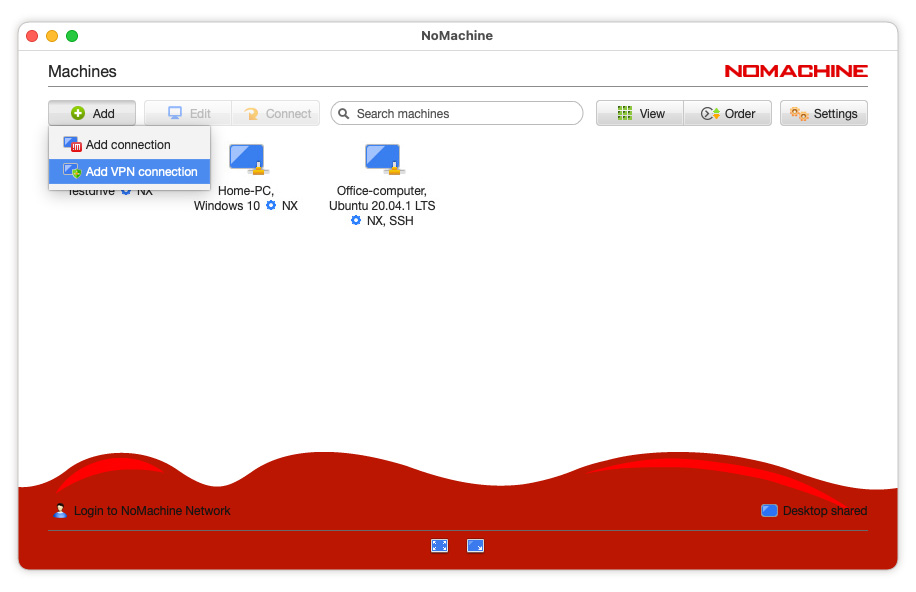
NoMachine VPN works by creating a secure encrypted connection between your device and the remote NoMachine enterprise server host, which can handle multiple VPN connections, each one from a different client. A VPN connection is started in the same way as a remote desktop connection: from Machines, select ‘Add VPN connection’ and input the server’s IP/port, or Machine Id if published on NoMachine Network. When you start a VPN connection from your device, you are starting a VPN client-to-server tunnel, and you will see a status panel showing that the VPN is running. The VPN will run as a 'background service'. Although it is not a remote desktop connection, a NoMachine VPN connection is counted as a connection in the limit counter for connections to the remote desktop (physical desktop connections). It's not counted by the limit counter for Linux virtual desktops nor NoMachine Network connections.
You can create and configure the VPN tunnel with any of the following options:
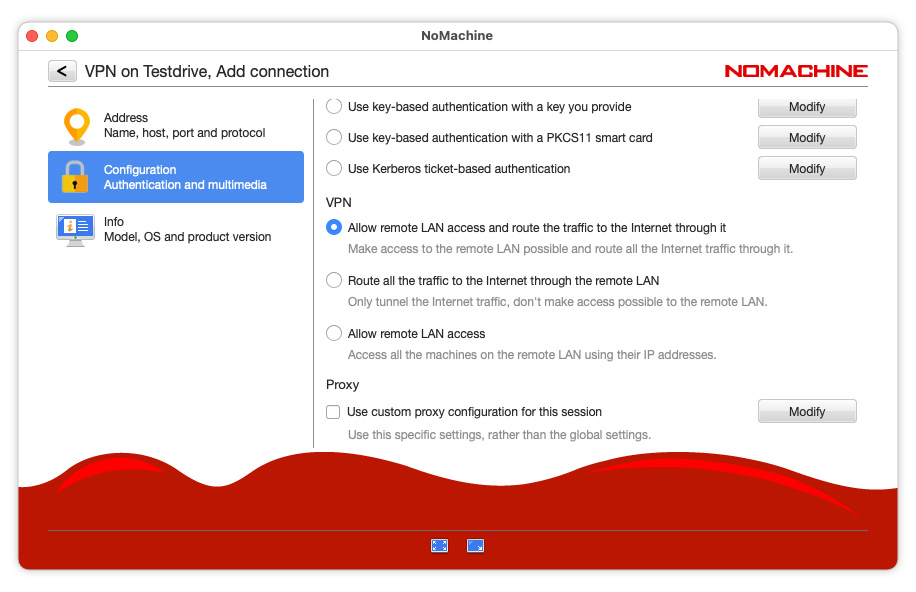
1) Allow remote LAN access and route the traffic to the Internet through it
This is the default setting. You can access any resource available on the remote LAN using its internal IP address (either through your file explorer and other network clients such as winscp, ftp, your browser etc, or through a NoMachine remote desktop session if there is a NoMachine server installed there.) LAN access is only one-way i.e resources on the remote LAN cannot see or reach resources on the local LAN, with the exception of the remote NoMachine VPN server host which can reach the local VPN client from which the VPN connection was started. All local incoming and outgoing Internet traffic (e.g. browser navigation, remote video playing etc) is encapsulated and routed through the NoMachine VPN-enabled server. Your real IP address, from which you started the VPN, will not be shown.
2) Route all Internet traffic through the remote LAN
You won’t be able to access other machines on the remote LAN with their internal IP address other than the NoMachine server host to which you're connected by the NoMachine VPN. This works like other VPN service providers, with the difference that it’s the self-hosted NoMachine server installed on premises that provides the VPN, not an external third party service. All local incoming and outgoing Internet traffic (e.g. browser navigation, remote video playing etc) is encapsulated and routed through the NoMachine VPN-enabled server. Your real IP address, from which you started the VPN, will not be shown.
3) Allow remote LAN access
The Remote LAN access option corresponds to split tunneling or Split VPN mode as other VPN programs call it. This traffic is “split” according to destination. For example, a NoMachine user connecting to the office network from a hotel via a public WiFi with this option enabled will be able to connect securely through the VPN to file servers, database servers, mail servers and other servers on the corporate LAN. Instead, when the same user connects to Internet resources such as websites through the browser, the connection request goes directly out the gateway provided by the hotel network.
If NoMachine detects that both LANs use the same subnet, a VPN status window shows a warning that you’re local LAN will no longer be reachable. This is to avoid potential cross-site IP numbering conflicts. If subnets are different, then local LAN access is not blocked, and you will have access to both local and remote LANs.
Why you should use NoMachine VPN
1) The VPN is yours. The NoMachine VPN doesn't rely on external servers as we already mentioned, it's your own NoMachine self-hosted server that provides it. You've got 100% control over it.
2) No need for additional VPN software. NoMachine gives you speed, security and privacy in one solution.
3) Easy to set-up. Install a NoMachine server from the Enterprise family and your VPN server is ready.
4) VPN clients are freely available in all NoMachine products NoMachine desktop clients for macOS, Windows, Linux, Raspberry or ARM all come with built-in VPN capabilities.
Frequently answered questions about the NoMachine VPN
What's the difference between a NoMachine connection and a NoMachine VPN connection?
They are two different things. The first is used to connect to the remote desktop if there is a NoMachine server running there and you can see and use the remote OS desktop as if it were installed on your own device. The second creates a VPN tunnel between your local device and the remote NoMachine server, giving you access to the remote LAN's resources and any shared services just like any other VPN. In that case, the remote LAN resources don't have to be running NoMachine software (except of course for the NoMachine VPN-enabled server). You do not need a VPN connection to remotely control your partner's computer or transfer files using NoMachine. You can use one without the other, or use them both together.
How to start a VPN connection
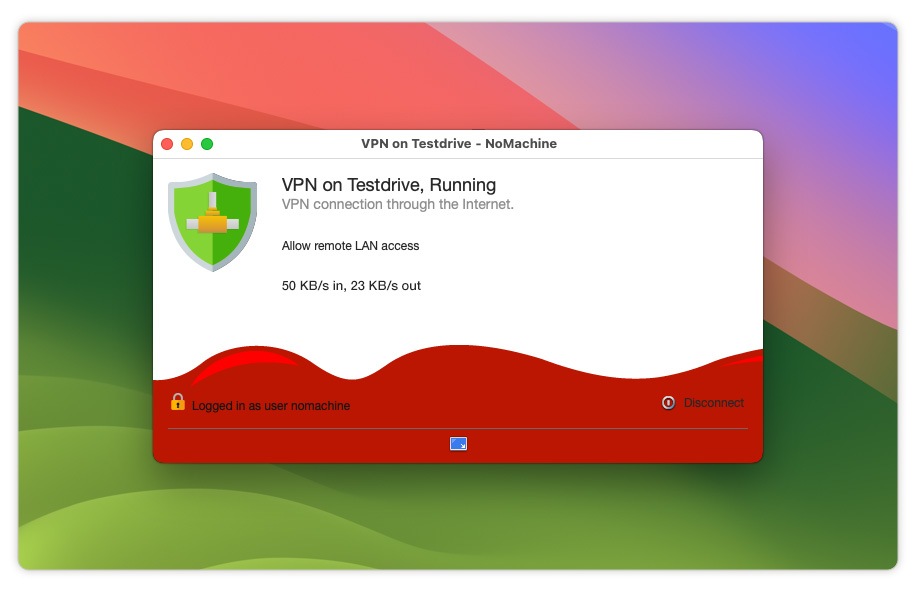
To create a VPN connection, from any Player select 'Add VPN connection' from the client UI and provide the IP or hostname of your NoMachine server or the Machine Id if you're using the NoMachine Network service. When the VPN you created is up and running, NoMachine issues a panel (see below) that shows that the VPN is running and on which machine: 'VPN on servername, Running'. If you close the dialog, the VPN status is minimized to the tray.
How to check if the VPN is running
When the VPN you created is up and running, NoMachine issues a panel (see below) that shows that the VPN is running and on which machine: 'VPN on servername, Running'. We can call it the VPN status panel and it will be minimized to the tray if you close it. I.e even if you close the VPN status dialog, the VPN connection is still running.
How to terminate the VPN connection
To terminate the VPN, just click the 'Disconnect' button in the VPN status panel, or go to the !M icon in the system tray, right click and open the NoMachine menu. Select 'VPN running' and then 'Disconnect'.
How to configure the VPN connection?
You can create the VPN connection with any of the three options already mentioned, and which you can see below. You can also re-configure the VPN connection. Clicking back will automatically save the changes:
Is the VPN service enabled by default when you install the NoMachine server?
Yes it is, when you make a fresh new install of NoMachine server v9 or later.
If you upgraded from a server v8 (or v7), you need to make the server aware of a new session type, called 'nx-vpn'. Execute the 'nxnode --availablesessionsetup'.
On Linux:
/usr/NX/scripts/setup/nxnode --availablesessionsetup
on macOS:
/Applications/NoMachine.app/Contents/Frameworks/scripts/setup/nxnode --availablesessionsetup
on Windows:
%ALLUSERSPROFILE%\NoMachine\scripts\setup\nxnode --availablesessionsetup
How to disable the VPN service on the server
It's possible to disable the VPN service offered by the server, so that users connecting to that server cannot create VPN connections, via the server configuration file:
on Linux /usr/NX/etc/server.cfg on Linux
on macOS /Applications/NoMachine.app/Contents/Frameworks/etc/server.cfg
on Windows %ALLUSERSPROFILE%\NoMachine\etc\server.cfg
Edit server.cfg and remove the 'vpn' session type from the AvailableSessionTypes key. For example:
AvailableSessionTypes unix-remote,physical-desktop,vpn
should become:
AvailableSessionTypes unix-remote,physical-desktop
Restarting the NoMachine server is not required, the change will be effective the next time the user tries to create a VPN connection on that server. The user will receive a message informing that creating the VPN is not possible.