





How to install licenses for NoMachine 7
When you purchase a license for any of the NoMachine products, you will receive the license file(s) by email in a "key.tar.gz" archive. The license file is active as soon as it is generated.
From your Customer Area you can also download your license file(s) and the corresponding NoMachine software package. Install the package, it provides an evaluation version of the license which should be replaced with your customer license.
The key.tar.gz archive for the server products (e.g. Workstation, Terminal Server, Enterprise Terminal Server) contains the following files:
i) server.lic
ii) node.lic
The Terminal Server Node subscription has only node.lic.
INSTRUCTIONS
First upload the key.tar.gz archive containing your license file(s) to the host machine. You must have administrative privileges to be able to install a license.
Extract the archive: depending on the product you will have one or two license file(s).
Install all of them by repeating instructions below for each *.lic file.
There are some alternative ways to install the licenses:
FIRST WAY: upload the license from the User Interface (UI) or
SECOND WAY: by issuing the command from command line.
Both methods take care of moving the license file in the proper place and set the requested ownership and permissions.
THIRD WAY: make all these operations manually.
FIRST WAY: upload the license from the User Interface
1) Access the Server settings panel (e.g. click on the !M icon in the system tray, select 'Show server status').
2) From the menu on the left, select the 'Updates' panel. In case, scroll down the panel till section 'License information'
3) Click on the link 'Node subscription' and scroll down to the end of the section
4) Click on the 'Replace button'. Browse to the new node.lic file you want to upload, choose it and confirm.
5) Repeat all the operations above for the server.lic file: click on 'Server subscription', upload the new server.lic file and confirm.
Note: In case of a Terminal Server Node installation on Linux, there's only node.lic and point 5) is not needed.
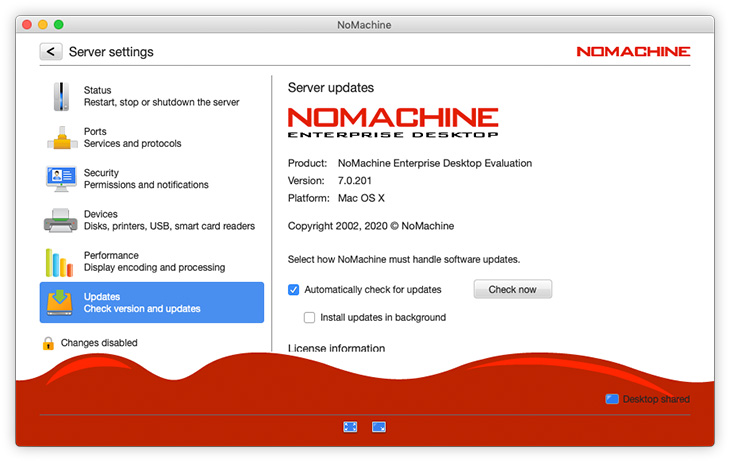
Server settings UI: the Updates panel
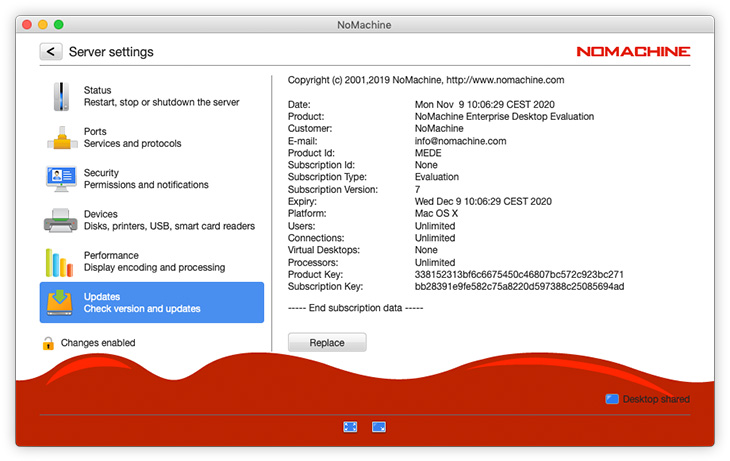
Server settings UI: the Updates panel, display and replace the license
SECOND WAY: install the license from command line
On Linux and macOS
1) Open a terminal on the remote host and move to the directory where you have uploaded and extracted the key.tar.gz archive. Run commands as privileged user.
2) Install node.lic by running command:
sudo /etc/NX/nxserver --activate node.lic
3) Install server.lic:
sudo /etc/NX/nxserver --activate server.lic
Note: In case of a Terminal Server Node installation on Linux, there's only node.lic!
On Windows
1) Open a CMD console as administrator and execute the following commands:
cd C:\Program Files (x86)\NoMachine\bin\

	nxserver --activate  path_to_node.lic
2) Repeat the same command for server.lic file:
nxserver --activate path_to_server.lic
THIRD WAY: install the license manually
Please refer to the following article which provides step by step instructions to manually install a license file:
https://www.nomachine.com/AR09K00687 .
TROUBLESHOOTING
1) License compatibility
License files v. 3.5.0 are NOT compatible with NoMachine version 6.
License v. 5 (or even v. 4) are in general compatible with NoMachine server v. 6, except for those cases in which it's requested to adopt license v.6. Please see https://www.nomachine.com/DT03O00129#1.4. for a list.
Licenses v. 6 cannot be used with a NoMachine server v. 5 or earlier.
Licenses v. 6 are compatible with NoMachine server v. 7.
2) Error: "No subscription information found" from command line or
"Cannot activate NoMachine Server, please ensure that server.lic (or node.lic) is a valid subscription and is not corrupted" via UI
Please see this article: https://www.nomachine.com/AR07D00404
3) The server version says to be an evaluation
NoMachine packages in the Customer Area come with evaluation licenses included in order to provide a software that it's fully operative once installed.
These licenses must be replaced with the customer licenses, according to instructions above.