





Connecting to the remote computer with Enterprise Desktop
Do you work from home and need to connect to your remote computer at the office? Or maybe you're a teacher and need to help your students in shared desktop mode?
NoMachine Enterprise Desktop is the perfect solution to give access to the desktop of a remote computer to one or more users, with a "just like being there" experience. Full interaction or view-only modes are both possible.
Who is it for?
Remote workers and digital nomads who need to access the desktop and resources of their office computer; teachers using screen sharing for teaching classes remotely; technical on-the-spot assistance or maintenance operations. This solution is suitable for any organization with multiple desktops or individual professionals.
What is it for?
Provide remote access to physical computers or virtual machines on hypervisors or hosted in a cloud service (Google Cloud, Amazon AWS, Microsoft Azure). Typical scenarios are smart working, remote educational set-ups, remote application control, remote assistance and more. Additionally, with Guest Desktop Sharing access, connecting to an attended desktop is easier & faster. Guests can connect to a shared desktop upon the desktop owner's authorization. Having an account on the remote machine is not needed.
Key features
- - End-to-end data traffic encryption
- - Multiple authentication method supported
- - Guest Desktop Sharing (no account needed)
- - Full control of the remote desktop and complete access to resources or view-only mode
- - Blanking of the remote physical screen during the connection and automatic lock of the screen upon disconnection
- - Native client for mobile, Windows, macOS and Linux and access via web
What do you need? - - NoMachine Enterprise Desktop server installed on the computer you want to access from remote
- - NoMachine Enterprise Client installed on your device (it's free to use)
- - Or a browser on your device
TIP
In the case of Linux hosts booted in CLI (command-line-interface) mode, such as for example headless hosts, NoMachine provides a way to access them in UI mode. Pre-requisite is that a desktop environment (e.g. GNOME, Xfce etc) is installed there.
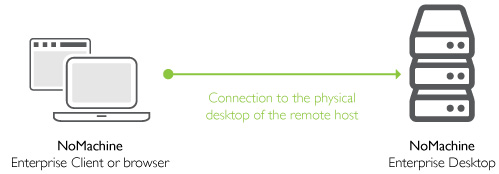
A schematic diagram for a typical Enterprise Desktop set-up
Licensing
1 x NoMachine Enterprise Desktop license for each computer which you need to access (Linux, Windows, macOS and also Raspberry or ARM).
On your device install NoMachine Enterprise Client (which is free to use) or connect via browser to the Enterprise Desktop server.
TIPS
Do you own multiple desktops?
If you own tens of desktops in different geographical locations and need to access them over the Internet or even over VPN, you may think about providing a single point of access to all of them by adopting any of the NoMachine Cloud Server products as a front-end broker to your Enterprise Desktops.
Do you need only a single user's access to your remote computer?
As an alternative to the Enterprise Desktop on the remote computer, you can install there the NoMachine free version and acquire a NoMachine Network subscription, options are monthly or yearly. Get easy access (no need for an external IP and port) via the Network service, allowed also for commercial use.