





NoMachine Cloud Server - Installation and Configuration Guide (v.6)
INSTALL If you own a customer license we recommend to download the package from your Customer Area: https://www.nomachine.com/support#login.
UPDATE There are two ways to update your current installation:
UNINSTALL
Installing for the first time If you own a customer license we recommend to download the package from your Customer Area: https://www.nomachine.com/support#login. Successive updates There are two ways to update your current installation:
If you want to install to default location, namely /usr/NX/: INSTALL
UPDATE
UNINSTALL
If you want to install to default location, namely /usr/NX/: INSTALL
UPDATE
UNINSTALL
If you want to install to default location, namely /usr/NX/, ensure that package is placed there. INSTALL
UPDATE
UNINSTALL
Packages include a temporary (30-days) node.lic and server.lic files for evaluation which allows the software to be up-and-running once installed. Such license files have to be replaced with the customer's license files acquired from NoMachine. This can be done via the NoMachine server GUI in the 'Updates' panel: click on the server.lic and node.lic links to open their license panel and replace the license. See https://www.nomachine.com/DT10O00155 for more details on the GUI usage, or https://www.nomachine.com/AR11O00942 for more instructions, included commands from a terminal to activate licenses manually. To verify from command line that server.lic and node.lic are correctly in place and check their validity, you may run the nxserver/nxnode --subscription and --version commands. For example on Linux:
NoMachine Cloud Server allows to centralize the access to server subsystems, which are independent and globally located. These subsystems can be NoMachine servers or the so called 'foreign servers', i.e. Unix servers which offer SSH connectivity and a X-windows based environment but don't have the NoMachine software installed on.
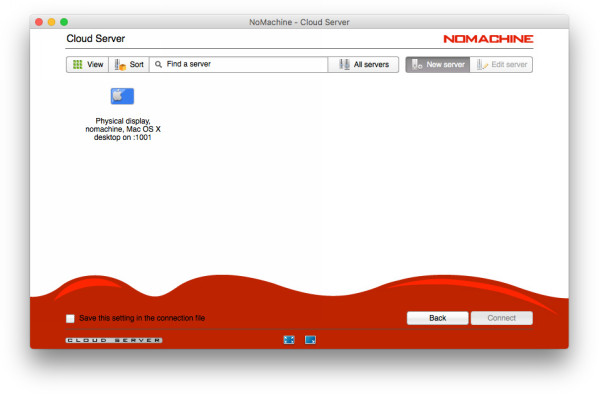
The Cloud Server, we can call it the main server, can add a new server (child server) to the multi-host infrastructure at any moment and without business discontinuity. Multiple NoMachine Cloud Servers can be also added to the main server, building in this way a multi-level infrastructure (hierarchy). The main server is the top-level server which rules the whole hierarchy, the other Cloud Servers are multi-tier subsystems, which in turn can be parent servers of other children servers. We call first-level servers those servers that are directly added to the main Cloud Server, second-level servers are added to first-level servers and so on. All servers are structured in a parent-child hierarchy. Servers' hierarchies can be built from the main Cloud Server. This is an example of multi-level hierarchical infrastructure, which includes also foreign servers. Note that the main Cloud Server is in failover cluster with a second Cloud Server to grant high available access to the system:  How to add a NoMachine server to the main Cloud Server To add servers via NoMachine GUI: log-in to the main Cloud Server by NoMachine client or via browser. Use an account with 'NoMachine administrator' privileges to log-in. On Windows, you can alternatively log-in as Windows administrator, on Mac and Linux as 'root' if this account is available. Then click on 'New server' and complete all the requested field to federate the server:
Default settings will suffice for the majority of environments. It is possible to configure extra details on how client connections will be forwarded to the selected server by clicking 'Configure'. Server's commands explained in the next sections correspond to the same configuration options available in the GUI.
Once connected via GUI to the main Cloud Server, it's also possible to add a child server to a sub-level Cloud Server: right click on the sub-level Cloud Server to open the context menu and choose 'Show the servers'. This will show you the list of all servers federated under the selected Cloud Server and let you add a new server to it.
As an alternative to the GUI, it's possible to federate the server also from command line. On the main Cloud Server host, execute the 'nxserver --serveradd' command to federate a NoMachine server, you need to be a system privileged user for doing that:
Once the server is added, it is assigned with a unique string identifier (UUID). Use it to identify the child server and, when necessary, its parent when executing commands to manage it. You can also federate a Cloud Server under the main Cloud Server and add a child server to it. To add a child server to a sub-level Cloud Server, you need to know the UUID of this sub-level Cloud Server. The general format of the command, to be executed on the main Cloud Server is:
How to build servers' hierarchies is however dealt in detail in the paragraph dedicated to creating multiple levels of NoMachine servers.
By default the federated server is added with the following settings which are suitable for most cases. 1) Connection between this Cloud Server and the federated server uses the NX protocol on port 4000. Let's call it server-to-server connection or communication. 2) NoMachine clients' connections by NX protocol are forwarded to the federated server on port 4000. The client authenticates to the federated server with an OTP (One Time Password) token which uniquely identifies the client. Forwarding method 'system' is also supported. 3) For clients' connections by SSH protocol, the default forward method is system, which means that the client will be authenticated to the federated server by using the same credentials already used for authenticating it on the Cloud Server. Fall back method, as in the previous case, is tunnel. This default setting corresponds to the 'serveradd' command option: --forward-ssh-methods system,tunnel. For client's SSH connections, OTP token is supported on Mac/Linux Cloud Server and child servers, but it requires to manually configure the system. 4) Users can connect directly to the IP of the child server, i.e. direct access to the federated server is enabled. 5) Once connected to the main Cloud Server, users can manually select to which child server connect. The GUI can list only first-level servers or all levels.
Setting protocol and port for server-to-server communication
Some examples for Linux or Mac:
Qualifying the federated server with a label and/or a comment
Listing the federated servers
Changing settings
Removing a child server
Stopping/starting a child server
How to forbid direct connections to the child server
How to remove a child server from the list of servers displayed to users
The server with 'manual selection' disabled is not listed among the available servers in the client GUI. You then need to assign users to the federated server by means of 'nxserver --useradd' or 'nxserver --useredit' commands if you want to let users access it.
There are two ways for adding child servers to a sub-level Cloud Server:
A practical example for building a multi-level infrastructure from command line
The same server can be a child of more than one Cloud Servers. For example, let's say that we have a fourth NoMachine server, Workstation WS, and that we want to add it to both CS1 and CS2:
Default settings for server-to-server communication are suitable in most cases. In specific environments, howewer, it may be necessary to apply a different method for forwarding client connections to the child server, or forwarding the connection on a specific network interface and/or port. Setting how client connections have to be routed to the child server The available forward methods are 'token','system' and 'tunnel'. There are different 'serveradd' options to define the forward methods for client connections by NX and SSH protocol.
|
|||||||||||||||||||||||||||||||||||||||||||||||||||||||||||||||||||||||||||||||||||||||||||||||||||||||||||||||||||||||||||||||||||||||||||||||||||||||||||||||||||||||||||||||||||||||||||||||||||||||||||||||||||||||||||||||||||||||||||||||||||||||||||||||||||||||||||||||||||||||||||||||||||||||||||||||||||||||||||||||||||||||


Some examples for Linux or Mac
| The following settings correspond to the default behaviour: |
| $ sudo /etc/NX/nxserver --serveradd testdrive1.nomachine.com --protocol NX --port 4000 --forward-nx-methods token,tunnel --forward-ssh-methods system,tunnel |
| and are equivalent to run the command without the additional paramers, like this: |
| $ sudo /etc/NX/nxserver --serveradd testdrive1.nomachine.com |
| This is also equivalent to use: |
| $ sudo /etc/NX/nxserver --serveradd testdrive1.nomachine.com --protocol NX --port 4000 |
| Tunnel both client connections by NX and SSH protocol through the existing server-to-server connection which uses NX protocol on port 4010: |
| $ sudo /etc/NX/nxserver --serveradd testdrive2.nomachine.com --protocol NX --port 4010 --forward-nx-methods tunnel --forward-ssh-methods tunnel |
| When users connect by NX protocol, forward client connections and try to use the OTP token for authenticating the client to the child server: |
| $ sudo /etc/NX/nxserver --serveradd testdrive3.nomachine.com --forward-nx-methods token |
Forwarding client connections to the child server on a specific network interface and port
When the client connection is not tunneled, it's possible to specify the network interface and port to be used for the client-child server connection. This can be useful when the server host has multiple NICs and you prefer to have a separate network for Cloud Server and client connections.
| Specify a different NIC and port for client connections by NX protocol with the following options: |
| nxserver --serveradd SERVERIP --forward-nx-host SERVER_IP2 --forward-nx-port PORT2 |
| For client connections using the SSH protocol, use instead: |
| nxserver --serveradd SERVERIP --forward-ssh-host SERVER_IP2 --forward-ssh-port PORT2 |
|
|||
|
|||
| In case of non-first level servers and foreign servers, client connections are always tunneled. | |||
| 3.4. Using the 'token' Forwarding Method for Client Connections by SSH (Advanced) |
The token forwarding method for client connections by NX protocol is the default method and doesn't require any additional system configuration. NoMachine provides a built-in mechanism to generate the One Time Password and to use it for identifying the client.
In case of client connections by SSH protocol, instead, it relies on PAM-SSH for authenticating the token. NoMachine provides a specific module, pam_nxtoken.so for this purpose and this module has to be added to the system PAM SSH configuration. The token forwarding method can be used only if the child server is Linux or Mac.
On Linux systems with SELinux enabled and not running in permissive mode, it's also necessary to add a policy to the SELinux configuration to permit the communication between SSHD and NoMachine in order to allow to authenticate the client with the OTP token.
Configuring Mac for using the pam_nxtoken.so module
Identify the sshd_config and sshd configuration files on your system:
Mac 10.11 and higher
/etc/ssh/sshd_config
/etc/pam.d/sshd
Mac versions up to 10.10
/etc/sshd_config
/etc/pam.d/sshd
Add the following entries to the sshd_config file:
PasswordAuthentication no
PermitEmptyPasswords no
ChallengeResponseAuthentication yes
UsePAM yes
Add the following entries to the beginning of the sshd file
auth sufficient /Applications/NoMachine.app/Contents/Frameworks/lib/pam_nxtoken.so
Finally, restart SSHD.
Configuring Linux for using the pam_nxtoken.so module
Identify the sshd_config and sshd configuration files on your system, namely:
/etc/ssh/sshd_config
/etc/pam.d/sshd
Add the following entries to the sshd_config file:
PasswordAuthentication no
PermitEmptyPasswords no
ChallengeResponseAuthentication yes
UsePAM yes
Add the following entry to the beginning of the sshd file:
auth sufficient /usr/NX/lib/pam_nxtoken.so
If it's a Debian-based system, add instead:
auth sufficient /usr/NX/lib/pam_nxtoken.so
auth [success=done default=ignore] pam_unix.so try_first_pass use_authtok
If the second entry is no added, users may be asked twice for password.
Finally, restart SSHD.
|
|||
|
|||
| I |
In some cases, SSHD is not able to authorize the client to the federated server. This might be caused by permissions set for the user's ~/.ssh directory and files. Proper permissions are: |
||
| II |
The 'nxserver --serveradd' command can hang on Linux when LDAP or Active Directory is used. To solve that, edit the sshd file and modify it as it follows. For LDAP users For Active Directory users add instead these lines (the first entry should be already present if you have applied instructions above): |
||
Additional instructions for SELinux configuration
In order to add the necessary SELinux policy, NoMachine will use a script which is able to retrieve the port on which the 'nxserver --daemon' process is listening and opening it in the SELinux configuration. Other two scripts will be also necessary to clean-up possible left-over policies and remove the current policy once NoMachine is shutdown.
These scripts will be executed as 'nx' user and require that the nx user can use 'sudo' without password. To ensure that, add the following line to the /etc/sudoers file:
nx ALL=(ALL) NOPASSWD: ALL
Scripts to configure SELinux will be executed when the 'nxserver --daemon' process is started (e.g. at reboot or when the 'nxserver --restart' command is given) and stopped. They must be placed in a directory accessible by the nx user and have read,write and executable permissions (744 or 700).
To instruct NoMachine to execute such scripts, edit the /usr/NX/etc/server.cfg file, uncomment and provide path to the correspondent script into the following keys: ScriptBeforeServerDaemonStop ScriptAfterServerDaemonStart
ScriptBeforeServerDaemonStart
Provide in ScriptBeforeServerDaemonStop the script to clean-up the SELinux policy if it already exists.
Configure ScriptAfterServerDaemonStart to execute the script for adding the SELinux policy.
In the ScriptBeforeServerDaemonStart key set instead the script to remove the policy when NoMachine is shutdown.
We prepared the following scripts as an example, they were made for Fedora 26 but can be easily modified to fit different systems.
In particular since path to 'semanage' can be different, you may verify that by running:
| which semanage |
and change the path used in the following scripts accordingly.
clean_up_token_policy.sh
#!/bin/bash
|
add_token_policy.sh
#!/bin/bash
|
remove_token_policy.sh
#!/bin/bash
|
We placed these scripts in the home directory of the nx user: /var/NX/nx/ and set permissions 740.
Then we configured the server accordingly:
ScriptBeforeServerDaemonStop "/var/NX/nx/clean_up_token_policy.sh"
ScriptAfterServerDaemonStart "/var/NX/nx/add_token_policy.sh"
ScriptBeforeServerDaemonStart "/var/NX/nx/remove_token_policy.sh"
Finally we restarted NoMachine in order to execute the script for adding the necessary SELinux policy.
| 3.5. Federating 'Foreign servers' under a Cloud Server |
NoMachine Cloud Server allows also to federate the so called 'foreign servers', which are Unix-like hosts running an unsupported Operating System for which we don't build native packages.
Pre-requisites to integrate a Foreign server in the NoMachine hierarchical infrastructure are:
1. A Unix-based operating system is running on the Foreign server host, e.g. Solaris X86 , HP-UX, AIX, BSD etc ...
2. An X server is up and running on the Foreign server host.
3. The X server listens for TCP connections.
This is necessary to let the X server listen to remote connections from clients and enables the X11 forwarding from an external host. Please consult the official documentation of your Linux distribution for instructions and advices.
4. A desktop environment (e.g. GNOME) is installed on the Foreign server host.
5. A system account is present for each user who will need to log-in from remote to the Foreign server host.
6. The xauth command is installed on the Foreign server host.
7. The foreign server has SSH connectivity.
To add the Foreign server to the main Cloud Server, on the Cloud Server host execute the following command:
| nxserver --serveradd <foreign server IP or hostname> --foreign |
| Further options: |
| nxserver --serveradd <foreign server IP or hostname> [ --manual-selection yes | no ] [ --label <label>] [ --comment <comment>] |
| 3.6. Assigning Users to a Single Federated Server (optional) |
In the default configuration, all the available servers are listed to users, which will then be able to choose any of them. If the 'manual selection' is disabled for a child server, this server will be not listed to users. In this case, users will be able to connect to such server only if they have been explicitly redirected or assigned.
Assigning the user to a federated server is not mandatory but if this is set, the user's connection will be transparently routed to the specific server, even if it doesn't have the manual selection disabled.
User's assignment can be modified, set and unset at any moment.
There are three ways for routing user's connections to a given server.
FIRST METHOD, --redirect:
redirect the user's connection by username or client IP. This method doesn't require that the target server is federated under the Cloud Server.
SECOND METHOD, --forward-connection: forward the user's connection to the federated server. Depending on settings applied to the child server, client connections can be redirected (client will authenticate with a token or system credentials) or tunneled through the parent server.
Main differences between the two methods
When --redirect is used (first method in the list above), user's connection can be redirected by client IP or by username. In this last case it can be redirected before or after the user's login. Only if the connection is redirected after user's log-in, the user is not requested to authenticate on the target server. Redirection by username can be set on a per user-basis or on a per-group basis. When the user belongs to multiple groups, the directive set for the group with highest priority overrides the other settings.
The target server can be whichever type of NoMachine server. This method can also redirect the user's connection to a NoMachine server not federated under this Cloud Server or to a server that it's not a first-level one.
When --forward-connection is used (second method), the server must be federated under the Cloud Server.
|
|||
|
|||
| If the user or the group has both the '--redirect' and '--forward-connection' options set, the '--redirect' setting overrides the other one. | |||
FIRST METHOD:
redirect the user's connection by username or client IP
Redirection can be modified, set and unset at any moment.
Redirecting per-Client IP
| nxserver --hostadd CLIENT --redirect SERVER:PORT |
| where CLIENT can be hostname or IP address. A family of IP addresses can be set by using the star wildcard. SERVER is the hostname or IP address of the server where the client will be redirected and PORT is the port where the client will contact that server. |
By default redirection is done before the user's authentication on the system. To make it occur after user's authentication, use the '--switch afterauthentication' parameter.
For example on Linux or Mac
| redirect client 152.4.56.2 to testdrive.nomachine.com |
| $ sudo /etc/NX/nxserver --hostadd 152.4.56.2 --redirect testdrive.nomachine.com:4000 --switch afterauthentication |
|
|||
|
|||
| Multiple directives to redirect the same client IPs or hostnames to different servers are disallowed. To redirect a family of client IPs, use the * wildcard. For example (on Linux or Mac): | |||
|
|||
Redirecting per-username
To redirect the given user, use:
| nxserver --useradd USERNAME --redirect SERVER:PORT |
| or, if the system account has to be created on the Cloud Server: |
| nxserver --useradd USERNAME --system --redirect SERVER:PORT |
Some examples (for Linux and Mac)
| Create a new system user and redirect him/her to server testdrive.nomachine.com (user must have an account also on testdrive) |
| $ sudo /etc/NX/nxserver --useradd nxtest01 --system --redirect testdrive.nomachine.com:4000 |
| Redirect an existing user: |
| $ sudo /etc/NX/nxserver --useradd nxtest02 --redirect testdrive.nomachine.com:4000 |
| Create a group of NoMachine users on the Cloud Server, if it doesn't exists already, and specify the --redirect option to redirect all users of such group to the given host: |
| nxserver --groupadd GROUPNAME --redirect SERVER:PORT |
| To create a new user on the Cloud Server and add it to the group: |
| nxserver --useradd USERNAME --group GROUPNAME |
| To add an existing user to the group: |
| nxserver --useredit USERNAME --group GROUPNAME |
Listing redirection directives set per clients
| nxserver --hostlist |
| To list instead the directive set for a specific client IP or family of IP addresses, specify the client: |
| nxserver --hostlist CLIENT |
| CLIENT can be hostname or IP address, or IP address family specified by using the star wildcard to list all the available directives for that family |
List redirection directives set per users
The redirection directive, if set for the user, is displayed as output of the 'nxserver --userlist' command used to list all the users. Run:
| nxserver --userlist |
| or to display details about a single user: |
| nxserver --userlist USERNAME |
| or about groups of users: |
| nxserver --grouplist |
Modifying redirection directive set per client
| nxserver --hostedit CLIENT --redirect SERVER:PORT [ --switch beforeauthentication | afterauthentication ] |
| For example change redirection settings to redirect client 192.168.2.222 to a new server, nxhost.nomachine.com: |
| $ sudo /etc/NX/nxserver --hostedit 192.168.2.222 --redirect nxhost.nomachine.com:4000 |
Modifying redirection directive set per user
To modify IP or hostname and port of the server where sessions run by that user will be redirected, use:
| nxserver --useredit USERNAME --redirect SERVER:PORT |
| For example, to redirect system user nxtest01 to testdrive: |
| sudo /etc/NX/nxserver --useredit nxtest01 --redirect testdrive.nomachine.com:4000 |
| To modify directive set for a given group: |
| nxserver --groupedit GROUPNAME --redirect SERVER:PORT |
Removing redirection directives set per client
| nxserver --hostdel CLIENT |
Removing redirection directive set per user(s)
| nxserver --useredit USERNAME --redirect none |
| or remove redirection directive set per group of users: |
| nxserver --groupedit USERNAME --redirect none |
SECOND METHOD:
assign the user to a federated server
User's connections can be forwarded to a specific target server, given that such server is federated under this Cloud Server.
A practical example
| Federate testdrive.nomachine.com under this Cloud Server. Unless there are specific policies, it's not necessary to change default settings. The --forward-nx-method and --forward-ssh-method parameters can therefore be omitted: |
| nxserver --serveradd testdrive.nomachine.com |
| Let's assume that user nxtest01 has already a system account on the Cloud Server and on testdrive.nomachine.com, let's assign him/her to testdrive: |
| $ sudo /etc/NX/nxserver --useredit nxtest01 --forward-connection testdrive.nomachine.com:4000 |
| When user nxtest01 connects to this Cloud Server, the client connection will be automatically routed to testdrive. |
The --forward-connection option can be set also on a per-group of users basis:
| nxserver --groupadd GROUPNAME --forward-connection SERVER:PORT | UUID |
| nxserver --groupedit GROUPNAME --forward-connection SERVER:PORT | UUID |
|
|||
|
|||
| The server's UUID is the unique string identifier of the federated server. Run 'nxserver --serverlist --extended' to retrieve it. | |||
Listing forwarding directives
The forwarding directive is displayed as output of the nxserver --userlist command used to list all the users:
| nxserver --userlist |
| It's also possible to display details only about one single user with: |
| nxserver --userlist USERNAME |
| To list the forwarding directive set on a per-group basis, use: |
| nxserver --grouplist [GROUPNAME] |
Removing the forwarding
| nxserver --useredit USERNAME --forward-connection none |
| or, to remove the forwarding for a group: |
| nxserver --groupedit GROUPNAME --forward-connection none |
| 3.7. Assigning Users to a Pool of Federated Server (optional) |
Since v. 6.1, the Cloud Server allows administrators to assign the user or the group of users to a pool of child servers. In this way, when the user connects to the Cloud Server, he/she will see only a subset of servers and will be able to choose to which one to connect among them.
For example if servers federated under the Cloud Server are ED1, ED2, WS1, WS2 and WS3, administrator can configure the Cloud Server to make ED1 and ED2 visible to userA (but not to userB) and WS1, WS2 and WS3 visible to userB (but not to userA).
The general format of the command to allow/deny a child server is:
| nxserver --ruleadd --class server --type UUID | SERVER:PORT --value no | yes OPTIONS |
| where UUID is the unique ID of the federated server (retrieve it from the output of 'nxserver --serverlist --extended' command). If the server is a first-level child (i.e. its parent is this Cloud Server), it's possible to specify it by the SERVER:PORT pair, as it appears in the 'Server' column in the output of the 'nxserver --serverlist' command. OPTIONS can be any of the following options: --system (this is the default and can be omitted in the command line) -- user USERNAME --group GROUPNAME --guest |
| For example, let's say the the Cloud Server has four child servers: ED1, ED2, WS3 and WS4. First of all, let's retrieve their UUID and server name: |
| sudo /etc/nxserver --serverlist --extended |
| which provides in our example: 7596bc90-f81c-483e-9d91-4571dc582596, ED1:4000 bd23e474-38cc-44d2-af06-efad27d56939, ED2:4000 53532db3-0626-4074-ae50-a87ab1f84538, WS3:22 453a8dfc-486b-476d-aeb3-34beb2c790b6, WS4:2222 If we want to deny ED1 and ED2 for user nxtest01 but allow WS3 and WS4, it's enough to create rules to deny ED1 and ED2: |
| sudo /etc/nxserver --ruleadd --class server --type 7596bc90-f81c-483e-9d91-4571dc582596 --value no --user nxtest01 sudo /etc/nxserver --ruleadd --class server --type ED2:4000 --value no --user nxtest01 |
| In a similar way, it's possible to specify a pool of servers for a given group. For example, deny all servers to all users but allow users of group nxgroup01 to access ED1 and ED2: |
| sudo /etc/nxserver --ruleadd --class server --type 7596bc90-f81c-483e-9d91-4571dc582596 --value no sudo /etc/nxserver --ruleadd --class server --type ED2:4000 --value no sudo /etc/nxserver --ruleadd --class server --type WS3:22 --value no sudo /etc/nxserver --ruleadd --class server --type WS4:2222 --value no |
| sudo /etc/nxserver --ruleadd --class server --type 7596bc90-f81c-483e-9d91-4571dc582596 --value yes --group nxgroup01 sudo /etc/nxserver --ruleadd --class server --type ED2:4000 --value yes --group nxgroup01 |
| When support for guest users is enabled (see the corresponding chapter in this guide), a subset of servers can be defined only for guests by using the --guest option. E.g.: |
| sudo /etc/nxserver --ruleadd --class server --type WS4:2222 --value yes --guest |
To remove rules:
| nxserver --ruledel --class server --type TYPE OPTIONS |
| Where TYPE is the specific rule and OPTIONS is any of the following ones: --system (this is the default and can be omitted in the command line) -- user USERNAME --group GROUPNAME --guest For example, remove the rule which allows user nxtest01 to access child server ED1: |
| sudo /etc/NX/nxserver --ruledel --class server --type 7596bc90-f81c-483e-9d91-4571dc582596 --user nxtest01 |
| To remove all rules set for the given user, or group or guests: |
| nxserver --ruledel OPTIONS |
| For example: |
| sudo /etc/NX/nxserver --ruledel --group nxgroup01 |
| 3.8. Setting-up a Failover Cluster with a Second Cloud Server (optional) |
A NoMachine failover cluster is a group of two Cloud Servers that work together to maintain high available access to the centralized infrastructure. This is an active/passive cluster where the primary server is at the beginning active and ready to accept users' connections, while the secondary server is passive, its task is to constantly monitor the primary server.
When the secondary server loses contact with the primary server, the cluster failover occurs: the secondary server takes place of the primary server to grant the continuity of services. Sessions running on the remote nodes continue to stay connected, management of server-node connections is passed from the primary to the secondary server, the virtual IP of the cluster is taken by the secondary server, an ARP notification is sent to local network devices to update their ARP cache entries (Ethernet MAC to IP address link associations).
|
|||
|
|||
| I | If the Cloud Server has already a number of federated servers and you want to set it in a failover cluster, just create the cluster. The multi-server environment doesn't need further configurations. Please note that when the failover cluster is set, the uuid of the main Cloud Server will be different. Additionally, users will then have to connect to the shared IP of the cluster server, not to the IP of the main Cloud Server as before. | ||
| II | If the Cloud Server is instead a federated server, it's necessary to remove it from the multi-host environment before setting it in a failover cluster. Then create the failover cluster. Finally federate it again under its parent Cloud Server by specifying the shared IP of the failover cluster, not the IP of the single Cloud Server. | ||
Set-up the failover cluster
STEP 1: Identify which Cloud Server host will be the primary server (CS1) and which will be the secondary server (CS2).
STEP 2: Ensure that CS1 is already configured as federation server, i.e. all the required servers subsystems have been already added to this Cloud Server.
STEP 3: Set-up the 'primary server' role to CS1.
On CS1 execute:
| nxserver --clusteradd --local <local IP of CS1> --shared <IP of the cluster host> |
Optionally you may specify the following parameters to the 'nxserver --clusteradd' command:
| Parameter | Description |
| --master SERVER | If you want to specify a primary server different from CS1, use the --master option. We strongly advise for sake of simplicity, to set-up the cluster from the primary server host |
| --proto PROTOCOL:PORT | The supported protocols are NX and SSH which uses port 4000 and 22 respectively. Protocols and ports can be specified as a comma-separated list by using the --proto option, e.g. '--proto nx:4000,ssh:22' or '--proto nx:4000,ssh:4022' on Windows |
| --interface INTERFACE | The virtual network interface (by default eth0:0) is always created on the primary server. It's created on the secondary server only when it's detected that connection with the primary server is lost. |
| --netmask MASK | --interface and --netmask parameters allow to set-up a network interface and subnet mask for the cluster different from the default 'eth0:0' and '255.255.255.0' |
| --grace TIME and --retry VALUE | Grace period is time to be elapsed at cluster startup before initiating the failover procedure and is set by default to 30 seconds while retry interval is 10 seconds. Change them by using the --grace and --retry options respectively |
| --probe TIME and --interval VALUE | Probe timeout indicates for how long cluster monitor must stay connected to a cluster machine and interval for probing specify how often the monitor must probe status of cluster machines. They are set to 60 and 5 seconds. Provide --probe and --interval to modify these values |
| --timeout VALUE | Cluster timeout is for how long cluster monitor has to wait before considering the machine as faulty. It is set to 10 seconds. It can be modified by issuing the --timeout parameter |
STEP 4:
Set-up the 'secondary server' role to CS2
Always on CS1 execute:
| nxserver --clusteradd <local IP of CS2> |
STEP 5:
Restart CS1 and CS2
Firstly on CS1, then on CS2 execute:
| nxserver --restart |
|
|||
|
|||
| It's mandatory to restart both the primary and the secondary server. | |||
A practical example
Target is to set-up the failover cluster between 2 NoMachine Cloud Servers hosts, Cloud1 and Cloud2. This example assumes that they are both Linux hosts.
1. Install your Cloud Server on Cloud1.
2. Federate the necessary servers under Cloud1 via:
| nxserver --serveradd <ip of the server> |
| For example: |
| $ sudo /etc/NX/nxserver --serveradd 172.17.10.12 |
3. Install your second Cloud Server on Cloud2.
4. Assign to Cloud1 the active role (execute the command on Cloud1)
| nxserver --clusteradd --local <ip of Cloud1> --shared <virtual IP to be shared across both Cloud Servers> --netmask <netmask, only needed if different than 255.255.255.0> |
| For example: |
| $ sudo /etc/NX/nxserver --clusteradd --local 172.17.10.10 --shared 172.17.10.100 --netmask 255.255.0.0 |
5. Associate the second Cloud Server to the cluster with the following command (execute the command on Cloud1):
| nxserver --clusteradd <IP of second Cloud Server, Cloud2> --netmask <netmask, only needed if different than 255.255.255.0> |
| For example: |
| $ sudo /etc/NX/nxserver --clusteradd 172.17.10.11 --netmask 255.255.0.0 |
6. Restart nxserver on Cloud1:
| nxserver --restart |
7. Restart nxserver on Cloud2:
| nxserver --restart |
8. Connect via NoMachine client or browser to virtual IP (172.17.10.100)
Finally, you can then verify that high-availability works as expected.
9. Kill Cloud1: you will be disconnected.
10. Reconnect to virtual IP (172.17.10.100) while leaving Cloud1 down and you should be given the option connect again as Cloud2 should have now taken over duty.
| 3.9. Tuning the Failover Cluster Parameters |
Default settings apply to the most common cases. It may be necessary, however, to tune some parameters to fit some specific business requirements or network conditions. These are the default settings which define the cluster's heartbeat and rule health detection between the two NoMachine servers in the cluster.
| Health detection parameters | Threshold/Interval | Default value (seconds) |
| Define time to be elapsed (grace period) before failover is triggered and attempts' frequency (retry interval) | Grace period Retry interval |
30 10 |
| Define frequency for sending heartbeat (interval) and for how long the cluster monitor has to stay connected (probe time) | Interval Probe time |
5 60 |
| Define time to be elapsed before the cluster monitor considers the machine faulty | Timeout | 10 |
The global failover time depends on:
global failover time = grace period + timeout + router's convergence time
| 3.10. Administering the Failover Cluster |
Replacing the RSA key pair for the Failover Cluster (optional)
The primary and secondary Cloud Servers use a RSA key pair to connect and synchronize information between their databases. This key pair is valid only for the nx user. You may replace the default RSA key-pair provided with the installation by generating your own key-pair.
See https://www.nomachine.com/DT03O00127 for detailed instructions about how to replace the default RSA key-pair for the Cluster.
Once replaced, remember to update the cluster configuration by running on the primary Cloud Server or on the secondary Cloud Server (configurations will be propagated to the other server in the cluster) the following command:
| nxserver --clusterupdate |
Changing network interface and/or subnet mask for the given Cloud Server machine
| nxserver --clusterupdate <Cloud Server IP> --interface <interface> --netmask <mask> |
Changing IP of localhost, primary server and/or failover cluster
| nxserver --clusterupdate --local <server IP> --master <server IP> --shared <server IP> |
Changing Failover Cluster Parameters (heartbeats)
| nxserver --clusterupdate --grace <time> --retry <number> --probe <time> --interval <number> --timeout <number> |
Removing a Cloud Server from the Failover Cluster
| nxserver --clusterdel SERVER_IP |
Federating a new server to the primary Cloud Server CS1 and updating the Failover Cluster accordingly
Execute on CS1:
| nxserver --serveradd SERVER_IP |
| nxserver --clusterupdate |
Removing any of the federated servers from Cloud Server CS1 and updating the Failover Cluster accordingly
Execute on CS1:
| nxserver --serverdel SERVER_IP |
| nxserver --clusterupdate |
| 4. Initiating a NoMachine Connection (end-user's side) | |
First of all, ensure that the user has a system account on the Cloud Server and on each of the federated servers he/she needs to acces. Username must be the same on all machines, password can be different.
|
|||
|
|||
| If you have two Cloud Servers in a failover cluster the same system user's account (username and password) has to be created on both server hosts. | |||
| 4.1. Connecting by Browsers Via Cloud Server Web Tools |
Once installation is complete, Cloud Server is ready to go.
The end-user should point the browser on his/her device to:
http://SERVER:4080
Where SERVER is either the name or IP address of the host you want to reach.
E.g., if Cloud Server is installed on a host named 'myserver.com', the URL will look like this:
http://myserver.com:4080
Connection will be automatically switched to HTTPS protocol:
https://myserver.com:4443/nxwebplayer
In the login form, the end-user has to provide username and password of his/her system account on the Cloud Server host and connect.
Depending on how the Cloud Server is configured, the end-user will:
i) be re-directed to a specific server federated under this Cloud Server
ii) or will access the list of all federated servers with the possibility to choose any of them.
| 4.2. Connecting by NoMachine Client |
From a client device, where you have already installed a NoMachine package type or the Enterprise Client, run the NoMachine GUI from the programs or applications menu. A wizard will take you through the steps necessary to set-up your first connection, just click on 'Create a new connection'. If you prefer to skip the wizard, click on 'Continue'.
The fastest way to create a new connection is to write the name or IP of the NoMachine host you want to connect to in the text field and click on the 'Press enter to create a new connection' link. This method will use the default NX protocol on port 4000.
Alternatively, you can click on the 'New' icon next to the white text field to configure the session in more detail.
Note that IPv6 is supported: specify the IP address of the server host in IPv6 format (e.g. 2001:0:5ef5:79fb:30c6:1516:3ca1:5695) if you want to use it instead of IPv4.
See also the NoMachine Enterprise Client - Installation and Configuration Guide, https://www.nomachine.com/DT04O00140
| 4.3. Preventing Users from Storing their Credentials |
To prevent NoMachine client users from storing their credentials, use the EnableClientCredentialsStoring key in the server configuration file. The accepted values are:
player Only users connected via NoMachine client are enabled to save username and password in the connection file stored on their devices (computer, tablet etc ...)
webplayer Only users connected via browser can choose to save their access credentials. They are stored in the browser's cookie, given that the user's browser has cookies enabled.
both All users, regardless if connected via NoMachine client or via web, can store their credentials.
none Users cannot save their username and password. They will be requested to provide their log-in credentials at each connection.
For example, to allow only users connecting via NoMachine client to store credentials, set in the server configuration file:
EnableClientCredentialsStoring player
| 5. Configurations and Optimizations for Web Sessions | |
| 5.1. Configuring NoMachine Cloud Server |
The configuration file for the web player program (which provides the graphical front-end) and the web client program (which manages web sessions) is server.cfg, located in the BaseDirectory/NX/etc directory on Linux, BaseDirectory/NoMachine/etc directory on Windows and /Applications/NoMachine.app/Contents/Frameworks/etc on Mac.
For example on Linux: /usr/NX/etc/server.cfg.
Default settings
The Section directive defines settings for the NoMachine server(s) where the web player application will connect. This directive, by default, points to localhost and looks like:
Section "Server"
Name "Connection to localhost"
Host localhost
Protocol NX
Port 4000
Authentication password
EndSection
Name is a label that can be displayed as an alternative to show hostname of the server.
Host is IP or hostname of the NoMachine server host.
Protocol and Port indicates protocol and port that web player will use to connect to the NoMachine server.
Authentication defines the authentication method to be used when connecting by the web: 'password' for password-based authentication (default) or 'private-key' for key-based authentication.
Changing protocol and port
By default when users connect via web, they will use the NX protocol on port 4000. Supported protocols are NX and SSH with system login
To use the NX protocol (this is the default), set:
Protocol NX
Port 4000
To use SSH protocol and system login, set for Linux and Mac:
Protocol system
Port 22
and for Windows:
Protocol system
Port 4022
Define the authentication method
When connecting by the web and since v. 6.6.8, it's possible to use password-based authentication or key-based authentication (available at the moment only for the NX protocol).
To use password-based authentication (this is the default), set:
Authentication password
To use SSH key-based authentication, set:
Protocol NX
Authentication private-key
|
|||
|
|||
| NoMachine uses by default port 22 for SSH protocol on Linux and Mac, and port 4022 on Windows. The default port for NX protocol is 4000. In order to change the port for NX protocol, change the port for the nxd service and restart it. See the paragraph 'Connecting by NX Protocol'. To change the port for connections by SSH to Linux and Mac hosts it's necessary to modify the listen port for the SSH server on the system. On Windows instead, change the port for the nxsshd service. | |||
Showing hostname or a custom label
To display hostname or IP of the Cloud Server host when connecting by the web, set the following key. This is the default:
EnableWebConnectionName 0
To display the label set in the 'Name' field of Section "Server" set:
EnableWebConnectionName 1
Hiding the tutorial wizard at web session startup
To not display the tutorial wizard for the menu panel at session startup, set:
EnableWebMenuTutorial 0
and to show it (this is the default):
EnableWebMenuTutorial 1
Allowing to log-in as a guest
f the Cloud Server has support for guest accounts enabled, set the following key if you need that users connect by the web always as guest users:
EnableWebGuest 1
If this key is disabled, users will have the possibility to choose if log-in with their credentials or as a guest.
| 5.2. Managing Cloud Server Web Services |
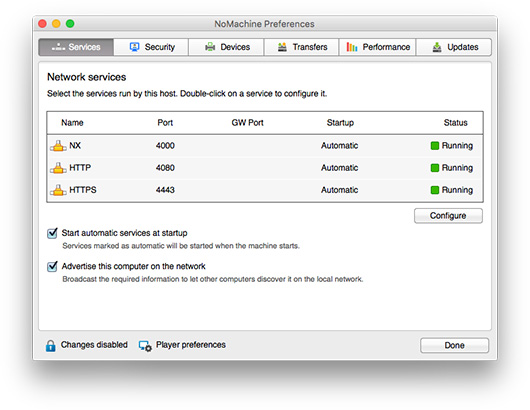
You can start and stop the NoMachine HTTP server (nxhtd) from the Server preferences GUI -> Services panel. From the NoMachine GUI you can also change the port where the web server will be listening (by default 4080 and 4443 for secure connections).
From command line instead it's possible to do the following.
Stop, start or restart nxhtd
| nxserver --stop nxhtd |
| or: |
| nxserver --start nxhtd |
| or: |
| nxserver --restart nxhtd |
Automatic restart of the nxhtd service
Each service is automatically restarted at the next boot. You can change the default behavior for the nxhtd service by setting:
| nxserver --startmode nxhtd manual |
| or to enable the automatic restart of the service: |
| nxserver --startmode nxhtd automatic |
The nxserver --startmode command operates on the StartHTTPDaemon server configuration key:
StartHTTPDaemon Automatic
and:
StartHTTPDaemon Manual
Disabling the starting of the NoMachine HTTP server
Edit the server configuration file and remove HTTP from the ClientConnectionMethods key. It should then look like:
Then restart NoMachine server to make this change effective:
| nxserver --restart |
| 5.3. Using an Alternative Apache Web Server |
NoMachine Cloud Server is designed to provide a fully integrated service to deploy sessions on the web which doesn't require additional software to be installed or manual configuration. The minimal Apache web server, nxhtd, provides the necessary modules and is pre-configured to work with the web player application.
However, it is possible to run the web player application with an alternative Apache web server. This requires the configuration of Apache and the web player.
Instructions are available at: https://www.nomachine.com/DT03O00128
| 5.4. Web Optimizations: Using WebRTC (Real-Time Web Communication) |
The implementation of WebRTC support in browser-based remote desktop sessions has inititally been released as beta and must be enabled explicitly by the administrator by editing the server.cfg file.
With the help of a STUN/TURN server for negotiating NAT traversal, peer-to-peer WebRTC communication can be established also when the web session has to be run behind a NAT.
STEP 1: Uncomment and set the AcceptedWebMethods key as follows to enable the use of WebRTC:
AcceptedWebMethods webrtc
STEP 2: If the node machine where the web session will be started is behind a NAT, you need to uncomment the following section in server.cfg:
Section "STUN"
Host hostname
Port portnumber
User username
Password password
EndSection
and provide relevant information to contact a STUN or TURN server. In this last case change Section name to "TURN".
See also: https://www.nomachine.com/AR07N00892 for further intructions about the configuration and: https://www.nomachine.com/AR07N00894 for an example about how to set up your own STUN/TURN server and configure the Cloud Server accordingly.
| 6. Cloud Server Configuration | |
| 6.1. Configuration Files |
The configuration files for the nxserver and nxweplayer/nxwebclient programs is server.cfg. The configuration file for the nxnode program is node.cfg.
They are placed in the:
BaseDirectory/NX/etc directory on Linux
BaseDirectory/NoMachine/etc directory on Windows
/Applications/NoMachine.app/Contents/Frameworks/etc/ directory on Mac.
For example on Linux:
/usr/NX/etc/server.cfg
/usr/NX/etc/node.cfg
The Default Configuration
NoMachine Cloud Server comes with a default configuration that is sufficient to grant a working setup in the majority of environments. NoMachine administrators can tune their installation at any moment and according to their specific needs by setting the related configuration keys. In some cases this will require to restart all NoMachine services.
Edit the Configuration Files
NoMachine configuration files are text files made up of a number of key-value pairs. All the configuration files can be edited manually by a text editor. For example 'vi' can be used on Linux and Mac, and 'notepad' on Windows. On Windows it can be necessary that you copy the cfg file in a different place, edit it and move it to the etc directory.
Be sure to uncomment the configuration key (i.e., remove the '#' pre-pended to the key) to set a value different from the default.
When a configuration key supports an on/off status, set value to '0' to disable it and to '1' to enable it.
Make Changes to the Default Configuration Effective
Changes will be effective with the next new connection without the need to restart the server if not otherwise specified.
|
|||
|
|||
| Configuration settings apply only to this Cloud Server, they aren't propagated to any of the federated servers (which in turn need to be configured via their configuration files). Additionally, please consider that the Cloud Server doesn't run sessions on its host (except for connections to the physical display made by authorized users like administrators). | |||
| 7. Services Management | |
Installation and upgrade procedures take care of configuring and starting all the necessary services to make NoMachine Cloud Server ready to accept connections. The necessary services are configured to be restarted at each reboot of the host machine.
| 7.1. Accepting Connections |
You can stop and start accepting new connections via:
the GUI
from the Server status GUI click on 'Stop the server' and 'Start the server' respectively: this will prevent users from running new connections
or from command line
to disable accepting new connections from the command line, run:
| nxserver --stop |
| or to enable accepting new connections: |
| nxserver --start |
| 7.2. Stopping and Starting Cloud Server and Services |
All NoMachine services can be stopped via:
the GUI
all NoMachine services can be stopped by the Server status GUI ('Shutdown the server'). When doing so, you will be asked if services must be started at the next reboot or not. You can restart services also from the Server status GUI ('Start the server').
or from command line.
Stopping all the NoMachine services
| nxserver --shutdown |
| This will completely disable access to the server host machine and terminate all connections already running on that host. By default, all services will be restarted when the machine is booted. To override this behavior, specify the --startmode option when stopping the services: |
| nxserver --shutdown --startmode manual |
Starting NoMachine server and services
| nxserver --startup |
| All services will be restarted at the next reboot. To not start services when the machine is rebooted, specify the start mode while running the --startup command: |
| nxserver --startup --startmode manual |
Specifying the start mode
It's possible to set the 'start mode' (if services will be started automatically at boot or not) by using:
| nxserver --startmode manual |
| or: |
| nxserver --startmode automatic |
Stopping and restarting NoMachine server and services
| nxserver --restart |
| 7.3. Stopping and Starting a Network Service |
The NoMachine networks services available for NoMachine Cloud Server are nxd, nxhtd (both installed on all platforms) and nxsshd (installed on Windows only):
| Program | Default port | Scope | Available on |
| nxd | 4000 | Accept connections by NX protocol | Linux, Windows and Mac |
| nxhtd | 4080 and 4443 | Accept connections by HTTP protocol (connections by the web) | Linux, Windows and Mac |
| nxsshd | 4022 | Accept connections by SSH protocol | Windows |
You can stop a single service:
via the GUI
in the Server status -> Server preferences -> Network services GUI. You can choose there also the start mode: if the service must be started automatically at the next boot or not.
or from command line.
Stopping a service
| nxserver --stop SERVICE |
where SERVICE can be:
nxd, the Network Server for accepting connection by NX protocol
nxhtd, the NoMachine web server for web sessions
nxsshd, the SSH server for Windows
Starting or restarting a service
| nxserver --start nxd |
| nxserver --start nxhtd |
| nxserver --start nxsshd (on Windows only) |
| or: |
| nxserver --restart nxd |
| nxserver --restart nxhtd |
| nxserver --restart nxsshd (on Windows only) |
Specifying the start mode
By default each service is automatically restarted at the next boot. You can configure that on a per-service basis by running:
| nxserver --startmode SERVICE manual |
| or to restore the default behavior: |
| nxserver --startmode SERVICE automatic |
Commands above operate on the configuration keys listed below. You can change them manually in the server configuration.
| Configuration | Key setting |
| Enable automatic starting of the NX Network server, nxd | StartNXDaemon Automatic |
| Disable automatic starting of the NX Network server, nxd | StartNXDaemon Manual |
| Enable automatic starting of the NoMachine web server, nxhtd | StartHTTPDaemon Automatic |
| Disable automatic starting of the NoMachine web server, nxhtd | StartHTTPDaemon Manual |
| Enable automatic starting of the SSH server, nxsshd on Windows | StartSSHDaemon Automatic |
| Disable automatic starting of the SSH server, nxsshd on Windows | StartSSHDaemon Manual |
| 7.4. Handling with Discovering of this Server on LAN |
By default NoMachine Cloud Server broadcasts information to let other NoMachine computers to discover it on the local network. You can disable this feature via:
the GUI
in the Server status -> Server preferences -> "Network services" GUI
or in the server configuration file
set the following key in the server configuration:
EnableNetworkBroadcast 0
Then restart the server to make changes effective:
| nxserver --restart |
|
|||
|
|||
| By default, also each of the NoMachine servers federated under the Cloud Server broadcast their information over the LAN. If they are configured to be directly accessible by the user (i.e. they accept connections to their IP), users will be able to see them and connect. If they are configured to accept connections via the Cloud Server only, their information is not broadcasted and they cannot be visible to users. | |||
| 8. Users Management | |
| 8.1. Managing Users on the Cloud Server Host |
You can manage (create, delete and modify) user accounts by using tools provided by your Operating System or the NoMachine server commands as explained below.
Creating Accounts
The Cloud Server is able to handle two types of accounts: system accounts and NoMachine accounts. The latter allows to separate the system password from the NoMachine password.
Creating a System Account
The system account will be created with the default system settings. The new user will be also added to the NoMachine Users db:
| nxserver --useradd USERNAME --system |
Creating a NoMachine Account
Use this command when the user already has a system account:
| nxserver --useradd USERNAME |
|
|||
|
|||
| I | To assign a password different from system password to a system user, enable NoMachine Password DB EnablePasswordDB 1 | ||
| II | To verify if the user's authentication is based or not on NoMachine Password db: | ||
|
|||
| III | Each user must have the same system account on the Cloud Server host and on each of the federated server hosts he needs to be able to connect to. Password can be different. | ||
Enabling and Disabling access for a NoMachine User
Prerequisites are:
(i)The user has run at least one session or have been added to NoMachine dbs by means of 'nxserver --useradd' command.
(ii) NoMachine Users DB is enabled (EnableUsersDB 1 is set in server.cfg)
You can enable/disable a user and allow/forbid his access to the Cloud Server by running:
| nxserver --userenable USERNAME |
| or: |
| nxserver --userdisable USERNAME |
| Note that 'nxserver --useradd USERNAME' adds the user to NoMachine dbs and automatically enables the user to log-in, while 'nxserver --userdel USERNAME' removes the user from NoMachine dbs and disables the user's ability to login by NoMachine. |
Modifying the User's Password
You can modify user's system password by running:
| nxserver --passwd USERNAME --system |
| or, the NoMachine password when Password db is in use( EnablePasswordDB 1 is set in server.cfg): |
| nxserver --passwd USERNAME |
Listing the NoMachine Users
All users who have run at least one session or have been added to NoMachine dbs are stored in the Users db. You can retrieve the complete list by running:
| nxserver --userlist |
The output of this command provides the following fields:
Redirected to: IP/hostname of the server to which the user's connection is redirected (by means of the 'nxserver --redirect' command)..
Trusted for: it shows if the user is trusted and therefore allowed to connect to the physical desktop of this host (only specific user are permitted to do that).
Screen Sharing: it shows which user has the sharing of their physical screen disabled.
Access: it shows if the user is enabled or not to access the NoMachine system. This works in conjuction with the use of the NoMachine Users DB: when enabled (EnableUserDB 1 in the server configuration), it's possible to enable/disable user's access to the whole NoMachine system.
Forwarded to: it indicates to which federated server, if any, the user will be forwarded when connecting to the Cloud Server.
Removing Accounts
To remove an account from the system:
| nxserver --userdel USERNAME --system |
For removing a NoMachine user and delete his account from the NoMachine dbs
| nxserver --userdel USERNAME |
| This will not remove the system account. |
Redirecting the user to a specific NoMachine server
To create a new system user and set-up a redirect directive to forward the user's connection to the given server:
| nxserver --useradd USERNAME --system --redirect SERVER:PORT |
| For example (on Linux or Mac): |
| $ sudo /etc/NX/nxserver --useradd nxtest05 --redirect testdrive.nomachine.com |
| Redirection can be set at any moment by editing the user: |
| nxserver --useredit USERNAME --system --redirect SERVER:PORT |
Forwarding the user to a specific NoMachine server (federated under this Cloud Server)
To create a new system user and set-up a directive to forward the user's connection to the given server:
| nxserver --useradd USERNAME --system --forward-connection SERVER:PORT | uuid |
| Redirection can be set at any moment by editing the user: |
| nxserver --useredit USERNAME --system --forward-connection SERVER:PORT | uuid |
| 8.2. Managing Groups of Users |
NoMachine Cloud Server allows to create groups of users. Groups of users can be also redirected to a specific NoMachine server federated under the Cloud Server.
Creating groups of users
| nxserver --groupadd GROUP |
| where GROUP is the name of the group. |
| For example (on Linux or Mac): |
| $ sudo /etc/NX/nxserver --groupadd developers |
|
|||
|
|||
| I | When there are multiple groups with different rules associated and the same user belongs to more than one group, it is possible to associate a priority level to the group. This can be done when creating the group by using the --priority <priority> option or later by editing the group settings. For example (on Linux or Mac): | ||
|
|||
| II | When the user belongs to one or more groups having all the same priority level, the most permissive settings of any of these groups are applied. For example if group A is trusted for accessing the physical desktop and group B is not trusted, users who belongs to both grou A and B are permitted to connect to the physical desktop. | ||
Assigning a user to a group
To assign an existent user to a group:
| nxserver --useredit USERNAME --group GROUPNAME |
| For example, to assign user nxtest01 to group developers (on Linux or Mac): |
| $ sudo /etc/NX/nxserver --useredit nxtest01 --group developers |
If the user doesn't yet have a system account, it's possible to assign it to a group while creating the system account:
| nxserver --useradd USERNAME --group GROUPNAME --system |
Redirecting all users of the given group to a specific NoMachine server
It's possible to set-up a redirect directive to forward all users belonging to this group to a different NoMachine server by using the --redirect SERVER:PORT option:
| nxserver --groupadd GROUPNAME --redirect SERVER:PORT |
| The --priority and --redirect options can be used simultaneously. Additionally, it's possible to set redirection at any moment by editing the group: |
| nxserver --groupedit GROUPNAME --redirect SERVER:PORT |
Forwarding all users of the given group to a specific NoMachine server (federated under this Cloud Server)
To create a new group and set-up a directive to forward the users' connection to the given server:
| nxserver --groupadd GROUPNAME --forward-connection SERVER:PORT | uuid |
| Redirection can be set at any moment by editing the group: |
| nxserver --groupedit GROUPNAME --forward-connection SERVER:PORT | uuid |
Changing the group of a given user
| nxserver --useredit USERNAME --group GROUPNAME |
| For example (on Linux or Mac), change group for user nxtest02 to group 'developers' (given that this group already exists): |
| nxserver --useredit nxtest02 --group developers |
Deleting a user from the group
| nxserver --userdel USERNAME --group GROUPNAME |
| For example (on Linux or Mac), remove user nxtest01 from group testers, but don't delete his system account: |
| $ sudo /etc/NX/nxserver --userdel nxtest01 --group testers |
| Remove user developer01 from group developers and delete his system account: |
| $ sudo /etc/NX/nxserver --userdel developer01 --group developers --system |
Listing groups
The following command lists all users on a per-group basis and shows options set for the group like priority, redirection rules etc...
| nxserver --grouplist |
| 8.3. Special Users with Permission to Connect to the Physical Desktop |
Only specific users are allowed to connect to the physical desktop of this Cloud Server host, mainly for maintenance operations. These specific users are:
a) Privileged system users (root or 'sudo' users on Linux and Mac, administrator users on Windows).
b) NoMachine administrators.
c) NoMachine users trusted for connections to the physical desktop.
a) Privileged system users
A privileged system account has to be defined by means of system tools.
The Cloud Server allows by default administrative users to connect. You can disable it by setting in the server configuration:
EnableAdministratorLogin 0
To re-enable the possibility to log in as root or administrator, set:
EnableAdministratorLogin 1
b) NoMachine administrators
To create a new user on the system with NoMachine administrative permissions, execute:
| nxserver --useradd USERNAME --system --administrator yes |
| To manage an existing user and set NoMachine administator's permissions: |
| nxserver --useradd USERNAME --administrator yes |
| To remove NoMachine administrative permissions: |
| nxserver --userdel USERNAME --administrator |
| or: |
| nxserver --useredit USERNAME --administrator no |
| To list only NoMachine administrators: |
| nxserver --userlist --administrator |
|
|||
|
|||
| Only NoMachine administrators can federate servers under a Cloud Server or add Terminal Server Nodes to an Enteprise Terminal Server cia the GUI. | |||
c) NoMachine users trusted for connections to the physical desktop
To create a new user on the system and make him trusted for connections to the physical desktop, run:
| nxserver --useradd USERNAME --system --trusted physical |
| To manage an existing user, modify trusted permissions or remove them: |
| nxserver --useredit USERNAME --trusted [ physical | none ] |
| E.g. (Linux or Mac) Edit user 'nxtest01' and give him trusted authorization to physical desktop: |
| $ sudo /etc/NX/nxserver --useredit nxtest01 --trusted physical |
| Remove trusted authorization for user 'nxtest02': |
| $ sudo /etc/NX/nxserver --useredit nxtest02 --trusted none |
| To list only trusted users: |
| $ sudo /etc/NX/nxserver --userlist --trusted |
| 8.4. Guest Users |
The Cloud Server supports the possibility to generate temporary guest accounts on demand. The automatic generation of guests accounts is available on all platforms, i.e. Linux, Windows and Mac. This feature however is not enabled by default and must be activated via profile rules.
Once enabled, the Cloud Server will accept the request to log-in as a guest and forward it to any of its federated servers. The target server has to support guest users and have them enabled. Guests are supported by Enterprise Desktop, Terminal Server and Enteprise Server.
Note also that a system account will not be created on the Cloud Server host: the login as a guest is temporary and valid only once. On the target server, instead, a system account is created for each guest user. Time of validity and other features can be set for guest users by editing the server configuration on the target host. See the guide for your Enterprise Desktop, Terminal Server or Enteprise Server for more details.
|
|||
|
|||
| Guest users don't know their username and password and cannot therefore unlock the remote screen if screen locking is enabled. It's therefore necessary to disable it on the system. | |||
To enable guest accounts
| nxserver --ruleadd --class feature --type enable-guest --value yes |
| To disable login as a guest: |
| nxserver --ruleadd --class feature --type enable-guest --value no |
How guest accounts work
When the user connects to the Cloud Server and chooses to 'Login using a guest account option', the Cloud Server will set-up a kind of virtual account. The user will be able to choose a server the list of all federated servers(only those which support guest login will be listed), or will be automatically forwarded to the target server. The Cloud Server will then contact the target server and request to create the guest account. On the target host, the NoMachine server installed there will create a system account according to settings in its configuration file. Login as a guest is not supported in case of foreign servers.
| 8.5. Profiles |
The Cloud Server uses profiles only to:
i) enable/disable support for login as a guest.
ii) All the other profile rules, for example to limit session types, services etc ... for users and groups need to be defined on any of the federated servers, if they support profiles. Profiles are available with NoMachine Terminal Server and Enterprise Terminal Server. Please refer to the guide specific for these products for more detailed instructions.
| 9. Automatic Updates | |
The Cloud Server, as well as the other NoMachine client and server products, periodically checks NoMachine repositories (by default every two days) to verify if updates are available and will prompt a dialog informing the user that a new version is available.
It will never automatically update the current installation. Also the download in background of a new software version will not lead to an automatic update of the current installation.
A separate guide deals specifically with all the possible options for the automatic software updates:
https://www.nomachine.com/DT10O00149
| 10. Logging Facilities | |
To retrieve logs by using the NoMachine tools, please refer to guides in the Configuration section at: https://www.nomachine.com/all-documents or collect them manually according to instructions here: https://www.nomachine.com/DT10O00163
|
|||
|
|||
| When debug mode is enabled, server logs may increase consistently. It's suggested to keep debug level only for the time necessary to reproduce the problem and collect logs. | |||
| 10.1. Using the System Logging Facilities |
By default the nxserver, nxwebplayer/nxclient and nxnode programs log to the file defined in the SystemLogFile key in their configuration files (server.cfg for nxserver and nxwebplayer/nxwebclient and node.cfg).
It's possible to configure these applications to log to the system log file instead. Edit the server.cfg and node.cfg files, uncomment and set:
EnableSyslogSupport 1
Then restart the server and all services to make the change effective:
| nxserver --restart |
| 10.2. Redirecting Logs to a Custom File |
You can redirect logs of nxserver, nxwebplayer/nxclient and nxnode programs to a custom file by uncommenting and setting the path to that file in the SystemLogFile key available in the server and node configuration files. By default this key is set to:
SystemLogFile /usr/NX/var/log/nxserver.log
Change it to point to a different file, for example:
SystemLogFile /tmp/NX.log
|
|||
|
|||
| The custom file must be accessible (writable) to the 'nx' user and to the connected user. | |||
| 10.3. NoMachine Log Rotation |
NoMachine supports log rotation for its log files since v. 6.5.6. Once activated, in the default configuration, logs are rotated once per month when they exceed 100MB. If not otherwise specified, NoMachine preserves up to seven rotated files and deletes the oldest ones.
Rotated logs are saved in the following directories:
/usr/NX/var/log/logrotate on Linux
%PROGRAMDATA%\NoMachine\var\log\logrotate on Windows
/Library/Application Support/NoMachine/var/log/logrotate on Mac.
To activate log rotation:
| nxserver --logrotateadd OPTION |
| OPTION can be any of the following: --rotate VALUE, specify the maximum number of rotated files to be preserved in the logrotate directory. When this number is exceeded, the oldest files are deleted. --timeinterval TIME, specify the frequency of log rotation. Frequency can be specified in seconds or by using the 'Daily', 'Weekly', 'Monthly', or 'Yearly' keyword. Rotate logs when the interval of time and the minimum log size is reached. --minsize VALUE, specify the minimum file size for rotating logs according to the given interval of time. If the minimum size is not reached, logs are not rotated. Value is by default in kilobytes, add M or G to set it in megabytes or gigabytes respectively. --size VALUE, specify the minimum file size for applying log rotation as soon as the file size is reached, regardless of the frequency set for log rotation. --compress yes|no, by default each log file is compressed as a gz archive, use '--compress no' to not compress it. --destination PATH, provide an alternative path where to store the rotated files. |
| If OPTION is not specified, the default settings will be applied. |
By default, log rotation is applied to all NoMachine log files. It's possible to specify which log file should be under log rotation:
| nxserver --logrotateadd LOG OPTIONS |
| LOG can be any of the following file name: nxserver.log nxerror.log nxd.log nxservice.log (on Windows only) nxwebclient.log nxhtd-error.log nxhtd-access.log |
| If OPTION is not specified, the default settings will be applied. |
To edit parameters set for log rotation:
| nxserver --logrotateedit LOG OPTION |
| To list current settings for log rotation: |
| nxserver --logrotatelist |
| To delete all settings for log rotation: |
| nxserver --logrotatedel |
| To delete log rotation settings for a specific log file: |
| nxserver --logrotatedel LOG |
Some examples:
| Rotate all logs monthly (the minimum size is the default 100MB): |
| nxserver --logrotateadd --timeinterval Monthly |
| Rotate only nxserver.log (which usually has the most relevant size) weekly if it exceeds the default size of 250MB: |
| nxserver --logrotateadd nxserver.log --timeinterval Weekly --minsize 250M |
| Rotate nxserver.log when it exceeds 250MB: |
| nxserver --logrotateadd nxserver.log --size 250M |
| Rotate the given logs weekly when they exceed 250MB and save the rotated files in a specific path: |
| nxserver --logrotateadd nxserver.log --timeinterval Weekly --minsize 250MB --destination /var/log/ nxserver --logrotateadd nxerror.log --timeinterval Weekly --minsize 250MB --destination /var/log/ |
It's possible to force log rotation at any moment. This doesn't require to enable it. To apply log rotation to all files or to a given log only:
| nxserver --logrotate LOG OPTIONS |
| OPTION can be any of the following options: --compress yes|no, by default the log file is compressed as gz archive, use '--compress no' to not compress it. --destination PATH, provide an alternative path where to store the rotated files. |
|
|||
|
|||
| To debug a problem easily reproducible, it could be helpful to clean up logs with 'nxserver --logrotate', activate the debug log level with 'nxserver --debug --enable all', reproduce the problem, collect logs with 'nxserver --debug --collect' and finally restore informational log level with 'nxserver --debug --disable all'. | |||